Last updated: March 2026
If you've been managing Apple devices in Intune for any length of time, you've probably noticed new DDM-related settings appearing in the Settings Catalog over the past couple of years. Maybe you've configured managed software updates and wondered what was actually happening under the hood. Or perhaps you just got the memo that MDM-based software update commands are deprecated in Apple OS 26 and you need to figure out what that means for your organisation.
This post covers everything — how DDM works architecturally, what settings are available today, how to configure them in Intune, what works on BYOD versus supervised devices, and where Apple is heading with all of this. It's a long one, so use the headings to jump to what you need.
Table of contents
- Why DDM matters right now
- How DDM works — the architecture
- The three pillars of DDM
- Declaration types explained
- What DDM settings exist today
- Platform and OS version support matrix
- BYOD vs. Supervised — what actually works
- How to configure DDM in Intune
- DDM and legacy profiles — coexistence and conflict
- Troubleshooting DDM on-device
- What's coming next
1. Why DDM matters right now
DDM has been in Apple's device management protocol since WWDC 2021, but for a long time it was easy to treat it as an "eventually" problem — something to pay attention to when your MDM vendor got around to supporting it. That window is now closed.
At WWDC 2025, Apple announced that MDM-based software update commands are deprecated in Apple OS 26. This means the legacy ScheduleOSUpdate and OSUpdateStatus MDM commands — the ones Intune has relied on to push iOS, iPadOS, and macOS updates — are going away on devices running iOS 26, iPadOS 26, and macOS Tahoe and later. If your organisation hasn't migrated software update management to DDM, you will lose the ability to enforce OS updates on those devices.
Microsoft responded quickly. Intune's August 2025 release added real-time DDM-based software update reporting, and the guidance from the Intune product team is unambiguous: migrate now, not later.
But software updates are just the start. Apple has explicitly stated that the focus of all future protocol development will be DDM. Legacy MDM profiles aren't disappearing overnight, but every new management capability Apple ships will land in DDM first — or exclusively. Understanding DDM is no longer optional for anyone managing Apple devices professionally.
2. How DDM works — the architecture
To understand DDM, it helps to first understand exactly what was wrong with the traditional MDM model — because DDM was designed specifically to address those limitations.
The old way: reactive MDM
Traditional MDM is a command-and-response protocol. The server sends a command (install this update, apply this profile, report your OS version), the device executes it and sends back an acknowledgment, and the server then decides what to do next. For the server to know the current state of a device, it has to ask. This creates a few real-world problems:
- State is always potentially stale. Between polls, a user could uninstall an app, change a setting, or install a system update. The server doesn't know until the next check-in.
- Scale is expensive. Managing a fleet of 10,000 devices means 10,000 devices checking in and being polled on a schedule. The server is doing a lot of work just to maintain a current picture.
- Offline devices fall behind. If a device is offline when a command is sent, it misses it. Catch-up logic adds complexity on the server side.
- Update enforcement is clunky. The server sends an update command, polls for status, polls again, sends a reminder — it's a multi-turn conversation just to install a software update.
The new way: declarative DDM
DDM flips this model. Instead of the server issuing commands and waiting for responses, the server declares the desired state — "this device should be running iOS 18.4, enforced by November 15th" — and sends that declaration to the device. The device then takes ownership of achieving and maintaining that state, entirely on its own.
The key shift is where the intelligence lives. In legacy MDM, the server drives everything. In DDM, the device drives its own compliance. The server just defines what "compliant" looks like.
This has several practical implications:
- Devices self-heal. If a user somehow removes a managed configuration, the device detects the drift and re-applies it without waiting for the server to notice.
- Status is proactive. Instead of the server asking "what's your OS version?", the device sends a status report the moment something changes. Intune knows in near-real-time.
- Works offline. Declarations are stored on the device. If connectivity is lost, the device continues enforcing policy. When connectivity resumes, it reports status.
- Server load drops significantly. No more polling. The server receives status updates only when something actually changes.
The diagram below shows these two flows side by side.
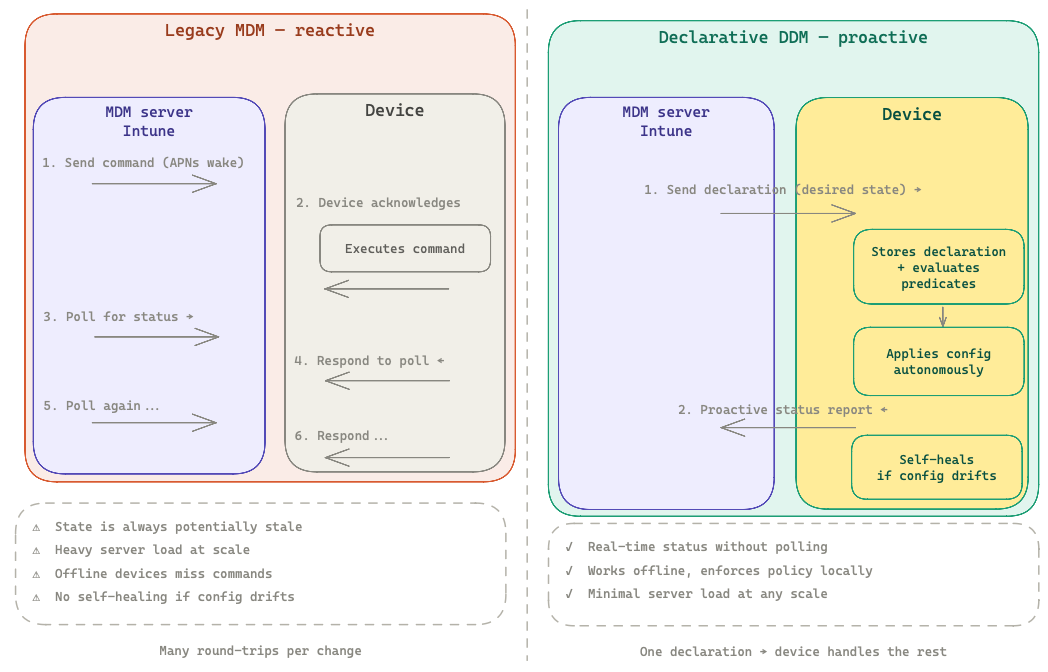
📊 Diagram: Legacy MDM reactive flow (left) vs DDM proactive flow (right), showing the reduction in round-trips and the addition of self-healing and proactive status reporting.
How DDM is enabled
DDM doesn't replace the MDM channel — it extends it. When an MDM server (like Intune) sends a DeclarativeManagement command to a device, the DDM channel is activated alongside the existing MDM channel. Both continue to function. Existing MDM profiles keep working. The device just gains a new, smarter management layer on top.
You enable DDM by sending a special MDM command to the device. In practice, Intune does this automatically for eligible devices — you don't flip a switch. Once enabled, the device begins exchanging declarations and status reports with the MDM server through the DDM channel, while legacy MDM commands continue to work normally on the same device.
3. The three pillars of DDM
Apple describes DDM as built on three foundational concepts: Declarations, Status Channel, and Extensibility. These aren't marketing categories — they map directly to how the protocol actually works.
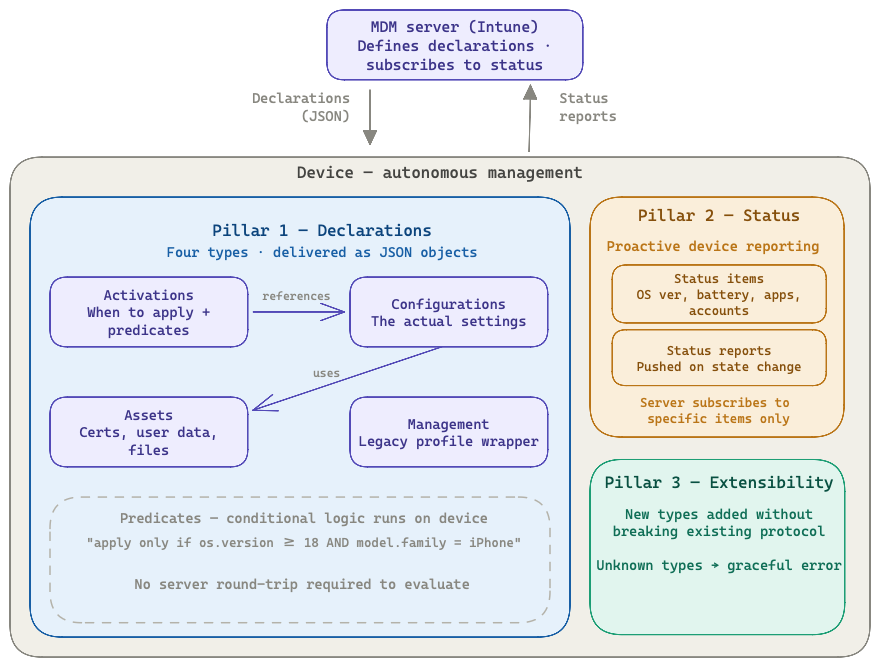
📊 Diagram: Intune at the top sending declarations down and receiving status reports up, with the Device container showing Pillar 1 (Declarations), Pillar 2 (Status Channel), and Pillar 3 (Extensibility).
Declarations
Declarations are the core of DDM. They are JSON objects (not PLISTs, like old-style MDM profiles) that the server sends to the device to define desired state. There are four types, covered in detail in the next section.
The important thing to understand about declarations is that they are stateful and modular. A declaration isn't a one-shot command — it represents an ongoing desired state. The device stores it locally, evaluates it against the current system state, applies it if conditions are met, and keeps it applied. If a declaration is updated on the server, only the changed parts need to be synced.
Declarations are also composable. An Activation can reference multiple Configurations. A Configuration can reference an Asset (like a certificate). The same Asset can be used by multiple Configurations. This many-to-many model means you can update a certificate in one place and every configuration that uses it automatically picks up the change.
Status channel
The status channel is a new communication path where the device proactively pushes information to the server. The server subscribes to specific status items — OS version, app install status, battery health, account configuration state — and receives updates whenever those items change.
This replaces the polling model entirely for subscribed items. Intune knows a device has updated its OS not because it asked, but because the device told it, at the moment it happened.
Status items are also the foundation for predicates (covered below). A device can apply a declaration conditionally based on its own status — for example, only apply a configuration if the device's OS version meets a minimum requirement — without needing to consult the server.
Extensibility
Extensibility is baked into the DDM protocol design. New declaration types and status items can be added by Apple without breaking existing implementations. When a device receives a declaration type it doesn't understand, it reports it as unrecognised rather than failing silently or erroring out the whole channel.
This means Apple can ship new DDM capabilities in new OS releases — and Intune can start using those capabilities — without needing to redesign the underlying protocol. It's why Apple described DDM as "designed for the present and the future" when they announced it.
4. Declaration types explained
There are four types of declarations. Think of them as a layered system where each type plays a specific role.
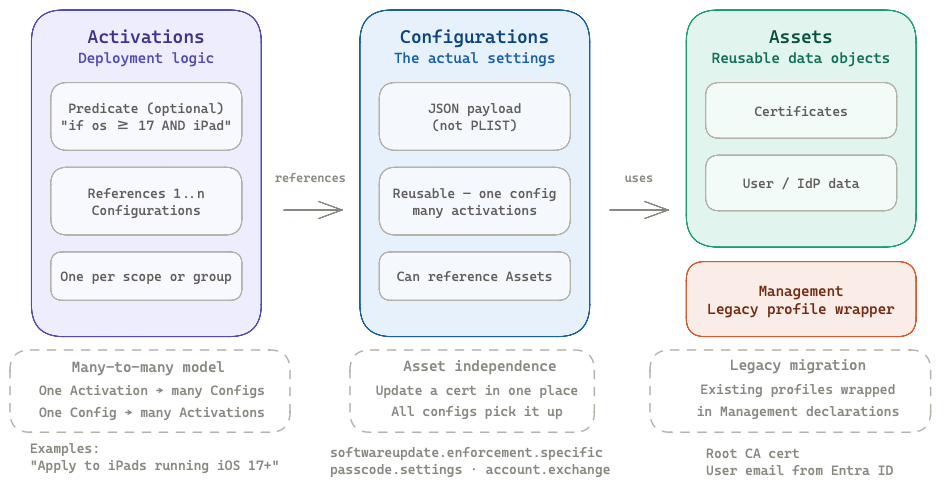
📊 Diagram: The four declaration types (Activations → Configurations → Assets, plus Management) with their many-to-many relationships and example use cases for each.
Activations
Activations are the deployment logic layer. They define which configurations get applied to a device, and optionally under what conditions. An Activation references one or more Configurations and can include an optional predicate — a logical condition that must be true for the Activation to apply.
Predicates can reference status items. For example:
- "Only apply this configuration if
device.os.versionis at least 17.0" - "Only apply this configuration if
device.model.familyis iPhone" - "Apply this stricter policy if the device is not at an approved network location"
This conditional logic runs entirely on the device, without a round-trip to the server. The device evaluates the predicate against its own status, applies or withholds the referenced configurations accordingly, and reports the outcome back via the status channel.
Configurations
Configurations are the settings layer — the equivalent of a payload in a traditional MDM profile, but delivered as a JSON object. This is where the actual management settings live: software update enforcement targets, passcode requirements, account configurations, disk management settings, and so on.
One key difference from MDM profiles: a Configuration is a standalone object that can be referenced by multiple Activations. You don't have to duplicate settings across multiple profiles. Define the configuration once, reference it wherever needed.
Assets
Assets are data objects that Configurations reference. Common examples:
- X.509 certificates (for authentication, signing, or trust)
- User-specific data sourced from an identity provider (username, email address)
- Custom configuration files
The power of Assets is reusability and independent update. If a root certificate needs to be rotated, you update the Asset on the server. Every Configuration that references that Asset picks up the change automatically — without needing to update or re-push the Configurations themselves.
Management declarations
Management declarations serve two purposes. First, they can wrap legacy MDM configuration profiles as DDM objects — this is the migration path for existing profiles. The profile itself doesn't change; it's just delivered via the DDM channel instead of the traditional MDM channel. Second, they allow setting custom management properties — integer, string, or boolean values that can be referenced in Activation predicates as custom logic conditions.
The legacy profile wrapping capability is what makes the transition to DDM gradual rather than a cliff. You can start delivering existing profiles via DDM today without rewriting any settings.
5. What DDM settings exist today
This section covers the native DDM configuration declarations available as of early 2026. There's an important distinction to make upfront that isn't always clear in documentation:
Apple's DDM schema defines the full set of declarations that the protocol supports at the OS level. This is what Apple ships and what any MDM vendor could implement.
Intune's Settings Catalog is the subset of those declarations that Microsoft has actually built UI and backend support for. Not every Apple DDM declaration is available in Intune yet — some exist at the protocol level but aren't surfaced in the catalog. Microsoft adds new DDM settings with each monthly service release, so the gap narrows over time.
The interactive table below maps every current DDM declaration to its Intune availability status. Click any row to expand details and the Settings Catalog path.
Settings Catalog path:
Microsoft docsSettings Catalog path:
Microsoft docsSettings Catalog path:
Microsoft docsSettings Catalog path:
Microsoft docsSettings Catalog path:
Microsoft docsSettings Catalog path:
Microsoft docsSettings Catalog path:
Microsoft docsSettings Catalog path:
Microsoft docsStatus as of March 2026. Apple only = supported at the DDM protocol level but not yet a native DDM configuration in Intune. Click any row to expand. Microsoft adds new DDM settings each monthly service release.
✅ Available now in Intune's Settings Catalog
These are the declarations you can configure today under Declarative Device Management (DDM) in the Intune Settings Catalog:
Software Update (macOS 14 · iOS/iPadOS 17+)
softwareupdate.enforcement.specific — The most critical one right now. This is how you enforce a specific OS version by a hard deadline. The device handles everything: downloading, preparing, notifying the user, and installing. Configure it in Intune via Settings Catalog → DDM → Software Update.
Key behaviours:
- If multiple enforcement declarations target different versions, the one with the earliest deadline for a newer-than-current version is processed first
- If the target version matches or is older than what's installed, the device returns an error in the status report — it will not downgrade
- Once a DDM update declaration is active, legacy MDM software update commands return errors on that device — you can't mix the two approaches
- User notifications come from the OS itself (not Intune) — Apple owns that UX. The
Notificationskey lets you adjust the default behaviour, e.g. showing only a 1-hour warning instead of extended reminders
{
  "Type": "com.apple.configuration.softwareupdate.enforcement.specific",
  "Identifier": "com.example.update.ios18",
  "Payload": {
    "TargetOSVersion": "18.4",
    "TargetLocalDateTime": "2025-11-15T22:00:00",
    "DetailsURL": "https://intranet.example.com/it/updates"
  }
}
Intune also supports a "Software Update Enforce Latest" mode (introduced in service release 2503) — instead of specifying a target version manually, you define a deferral period in days and an enforcement time, and Intune automatically targets the latest eligible release for each device model.
softwareupdate.settings — Controls update deferral windows, Rapid Security Response behaviour, and whether standard users can manually trigger updates. This is the DDM replacement for the old software update restrictions and is recommended over legacy MDM equivalents since August 2024. Configure it in Intune via Settings Catalog → DDM → Software Update Settings.
Passcode (macOS 14 · iOS/iPadOS 17+)
passcode.settings — The DDM-native passcode declaration. Covers minimum length, complexity requirements, maximum failed attempts, and auto-lock. This replaces the legacy passcode MDM payload and is available cross-platform. Configure via Settings Catalog → DDM → Passcode.
Safari Extension Settings (macOS 15 · iOS/iPadOS 18+)
safari.extensions.settings — Manage Safari extensions across managed devices: allow specific extensions, block others, or lock down the extension ecosystem entirely. Previously required workarounds via App Store VPP assignment or blunt restriction payloads. Configure via Settings Catalog → DDM → Safari Extension Settings.
Disk Management Settings (macOS 15+ only)
diskmanagement.settings — Controls whether devices can connect to external USB storage and network-attached storage. A long-requested capability for Mac admins that previously required third-party tools or kernel extension workarounds. Configure via Settings Catalog → DDM → Disk Management.
Math Settings (macOS 15 · iOS/iPadOS 18+)
math.settings — Configures the Math Notes and Calculator apps. Most relevant in education environments. Configure via Settings Catalog → DDM → Math Settings.
⏳ Rolling out / recently added
Audio Accessory Settings (macOS 26 · iOS/iPadOS 26+)
audioaccessory.settings — New in OS 26, announced in the Intune March 2026 release notes. Manages audio accessory connections and permissions. Rolling out to all customers through late March 2026.
🔵 Apple protocol only — not yet in Intune's Settings Catalog
These declarations are fully supported at the Apple DDM protocol level, but Microsoft has not yet built the backend to deliver them. It's worth being precise about what that means in practice, because the answer differs by declaration type.
A note on custom profiles and workarounds: For declarations that are DDM-native (background tasks, screen sharing), there is no functional Intune workaround today. These are JSON DDM declarations — the device expects them to arrive over the DDM channel with the DDM protocol. A custom configuration profile in Intune is a PLIST payload delivered over the legacy MDM channel. The device won't interpret a PLIST as a DDM declaration, and Intune doesn't have the backend to translate and route it correctly. The profile may deploy without an error, but the declaration won't be applied. This is a protocol gap, not a syntax problem — and it's a common source of confusion.
Background Tasks (macOS 15+ only)
services.background-tasks — Manages launchd agents and daemons in a tamper-resistant, managed location. Previously, Mac admins handled this with scripts, MDM-deployed packages, or tools like Outset. Apple now offers a first-class DDM declaration for it — but Intune can't deliver it yet. No functional workaround in Intune. If background task management via DDM is a requirement, you currently need a DDM-capable MDM (Jamf, Kandji, Mosyle, etc.). Until Intune adds support, the existing approach of deploying launch agents via pkg or script remains the practical path.
Screen Sharing Connection (macOS 14+)
screensharing.connection — Manages screen sharing connection groups. In Apple's DDM schema but not deliverable through Intune. No functional workaround in Intune — same protocol gap as above.
Account Configurations (macOS 14 · iOS/iPadOS 17+)
This one is different. Apple has DDM declarations for managed accounts (CalDAV, CardDAV, Exchange ActiveSync, Google, LDAP, Mail, subscribed calendars) — but Intune doesn't need DDM to deliver account configurations, because it already supports them via legacy MDM profile templates (Exchange, Email, etc.) that have worked for years. The MDM channel handles these just fine. What you lose is DDM-quality benefits: proactive status reporting on account state, self-healing if the account config is removed, and the cleaner JSON structure. Practical path: continue using Intune's existing account configuration profile templates — they work. The gap is quality of management, not functionality.
App Management (iOS/iPadOS 17+)
app.managed — The DDM declaration for app lifecycle management. Apple's schema and status channel already support DDM-native app install reporting. In practice, Intune manages apps through its own established channel (VPP, managed apps, required/available assignments) — so this isn't a hard blocker the way background tasks is. But native DDM app management would bring better install status granularity and self-healing deployments. One to watch for future Intune releases.
Legacy profile declarations
com.apple.configuration.legacy — Available in Intune where supported. This wrapper type lets you deliver any existing MDM configuration profile through the DDM channel. The profile content (PLIST) is unchanged; DDM handles delivery and status reporting. This is the migration path for settings that don't have a native DDM equivalent yet — and it unlocks better status reporting for those profiles as a side benefit. Note: passcode profiles cannot be delivered this way; use the native DDM passcode declaration instead.
6. Platform and OS version support matrix
DDM support has expanded significantly since the initial iOS-only launch in 2021. The table below shows the minimum OS versions required for DDM by platform.
| Feature | macOS | iOS/iPadOS | tvOS | watchOS | visionOS |
|---|---|---|---|---|---|
| DDM protocol (base) | 13 Ventura | 15 | 16 | 9 | 1.1 |
| Software update enforcement | 14 Sonoma | 17 | 17 | — | 1.1 |
| Software update settings (deferral) | 14 Sonoma | 17 | — | — | — |
| Passcode settings | 14 Sonoma | 17 | — | — | — |
| Account configurations | 14 Sonoma | 17 | — | — | — |
| Disk management settings | 15 Sequoia | — | — | — | — |
| Background tasks | 15 Sequoia | — | — | — | — |
| Safari extension management | 18 | 18 | — | — | — |
| Battery health status item | 14.4 (Apple Silicon) | 17 | — | — | — |
| Shared iPad support | 14 Sonoma | 17 | — | — | — |
Note: "DDM protocol (base)" refers to the ability to receive declarations and use the status channel. Individual declaration types have their own OS minimums — a device can support DDM but not support a specific newer declaration type if the OS is too old.
7. BYOD vs. Supervised — what actually works
This is probably the most nuanced section in the post, and the one that changes most frequently. The short summary: supervision still gates the most powerful capabilities, but DDM has meaningfully expanded what's available for user-enrolled and BYOD devices — particularly for software updates.
What supervision actually means in this context
A "supervised" device in Apple's model is a device enrolled via Automated Device Enrollment (ADE) through Apple Business Manager or Apple School Manager. Supervision is applied during initial setup and grants the MDM server a significantly broader set of management capabilities — including locking the MDM enrollment profile to the device, controlling activation lock, preventing the user from removing MDM, and restricting actions that are otherwise user-controlled.
BYOD in most enterprise contexts means one of two things: a personal device enrolled via the Company Portal app (Device Enrollment, with or without User Enrollment), or a device using App Protection Policies without full MDM enrollment at all.
The historical pattern
Apple has historically tightened supervision requirements over time — moving capabilities from "available to all enrolled devices" to "supervised only" as the capabilities became more sensitive. This trend led many admins to assume DDM would follow the same pattern, with the strongest DDM features requiring supervision.
What's actually available today
The situation as of early 2026:
| Declaration / Capability | Supervised (ADE) | User Enrolled BYOD | Account-Driven Enrolment |
|---|---|---|---|
| DDM protocol (base) | ✅ | ✅ | ✅ |
| Software update enforcement (core keys) | ✅ | ✅ | ✅ |
| Software update settings (deferral) | ✅ | ⚠️ Limited | ⚠️ Limited |
| Passcode settings | ✅ | ✅ | ✅ |
| Account configurations | ✅ | ✅ | ✅ |
| Disk management settings (macOS) | ✅ | ✅ | ✅ |
| Background tasks (macOS) | ✅ | ✅ | ✅ |
| Safari extension management | ✅ | ⚠️ | ⚠️ |
| Legacy profile declarations | ✅ | ✅ (profile restrictions apply) | ✅ |
| Status channel (all items) | ✅ | Subset | Subset |
The software update story for BYOD
This is worth calling out specifically because it surprised a lot of people in the community. At WWDC 2024, Apple's presentation described DDM software update enforcement as supervised-only. The documentation at that time supported this reading.
As of mid-2025, the picture changed. The basic DDM software update keys — TargetOSVersion, TargetBuildVersion, TargetLocalDateTime, and OfferPrograms — are available for unsupervised devices enrolled via Device Enrollment or ADE without supervision. In practice, this means you can use DDM to push iOS updates to BYOD devices enrolled in Intune via the Company Portal.
The important caveat: the enforcement experience differs. On supervised devices, the OS enforces the deadline without user override beyond the countdown window. On unsupervised devices, users may still need to agree to terms and conditions before the update installs. This is an Apple-controlled behaviour, not something Intune can override.
If you're running BYOD iOS in your environment and haven't tried DDM update policies yet — this is worth testing. It's a significant capability improvement over the old MDM-based path for BYOD.
What BYOD still can't do
To be realistic about the limitations:
- BYOD devices can't have MDM enrollment locked — users can remove management at any time
- Activation lock bypass is supervised-only
- Certain restriction payloads only apply under supervision (kiosk mode, single-app mode, restricting App Store access)
- The full set of status items isn't available on user-enrolled devices — certain hardware and system properties are scoped to device-channel only
8. How to configure DDM in Intune
Intune surfaces DDM in a few different places depending on which declaration type you're configuring. Here's how to find and use each one.
Software updates via DDM
The primary entry point for DDM-based software update management in Intune is the Settings Catalog under device configuration policies.
For iOS/iPadOS:
- Intune admin center → Devices → Configuration → Create → New Policy
- Platform: iOS/iPadOS, Profile type: Settings catalog
- Search for "Declarative Device Management" — you'll find the Software Update category
- Configure
Target OS Version,Target Local Date Time, and optionallyDetails URLfor an information page users see during the update process
For macOS: The path is the same. The DDM software update settings appear in the Settings Catalog alongside the traditional Software Update payload settings — they are distinct items. Make sure you're configuring the DDM variants if you're on macOS 14+ devices.
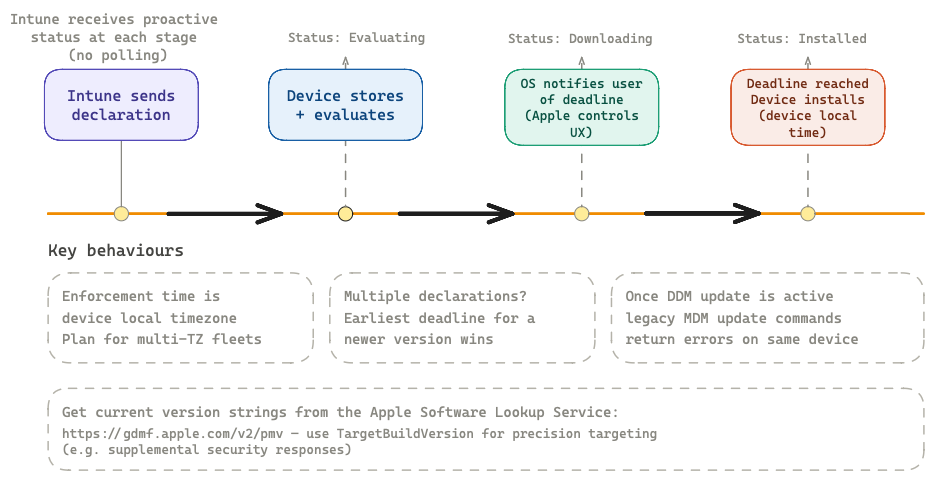
📊 Diagram: End-to-end lifecycle from Intune sending a declaration through to deadline enforcement, with proactive status reports at each stage and key behavioural gotchas.
Key settings to know:
- Target OS Version — the minimum OS version you want the device to reach. Use the full version string (e.g.,
18.4or15.3.1). - Target Build Version — optional, but allows targeting a specific build including supplemental security responses. Get current build strings from
https://gdmf.apple.com/v2/pmv(the Apple Software Lookup Service). - Target Local Date Time — the enforcement deadline in the device's local time zone. Note: DDM enforcement always uses device local time, not UTC or a server-defined time zone. Plan accordingly if you have users across multiple time zones.
- Notifications — controls the user-facing notification behaviour leading up to the deadline.
Important: Once a DDM software update declaration is active on a device, the device will return errors for certain legacy MDM software update commands. Don't mix DDM and legacy MDM update policies targeting the same devices.
Restricting update visibility (deferral)
If you want to delay when an update becomes visible to users — useful for giving IT a testing window — configure a deferral restriction in the Settings Catalog separately from the enforcement declaration. This is the com.apple.configuration.softwareupdate.settings equivalent in Intune, and it works by setting a number of days after Apple releases an update before it appears in the device's Software Update UI.
Other DDM settings in the Settings Catalog
Most native DDM configurations are accessible via the Settings Catalog. When browsing the catalog, look for items tagged "Declarative Device Management" in the category column — this distinguishes them from equivalent legacy MDM payload settings.
For macOS disk management and background tasks (Sequoia and later), these appear under their respective categories in the catalog. Check the "Supported Platforms" note for each setting to confirm the minimum OS version before deploying.
Legacy profiles via DDM delivery
If you have existing configuration profiles and want to deliver them via the DDM channel (for better status reporting and self-healing), some MDM vendors including Intune support wrapping profiles as legacy profile declarations. In the Intune admin center, check profile delivery options under the configuration profile settings — the option to install via DDM is available for most legacy profiles (with the exception of passcode policies, which have a native DDM equivalent).
9. DDM and legacy profiles — coexistence and conflict
A question that comes up constantly: if I have existing MDM configuration profiles deployed, what happens when I also start deploying DDM declarations for the same settings? Do they conflict?
The coexistence model
DDM and legacy MDM profiles coexist on the same device. Apple designed the transition this way deliberately. You don't have to rip out all your existing profiles before adopting DDM. The DDM channel sits alongside the existing MDM channel; both are active and both can deliver settings to the device simultaneously.
Conflict resolution
When both a legacy MDM profile and a DDM declaration configure the same setting, the most restrictive value wins. This applies to both directions — it doesn't matter whether the MDM profile or the DDM declaration is stricter, the device enforces the stricter setting.
Example: if an MDM profile sets a software update deferral of 7 days and a DDM declaration sets 14 days, the device enforces 14 days. If both set passcode minimum length but to different values, the higher value applies.
There is one important exception: software update and app configurations deployed via DDM take precedence over equivalent MDM commands. This isn't about strictness — it's a protocol-level priority. Once a DDM software update declaration is active, the MDM software update commands are effectively ignored.
The migration path
Apple provides a formal migration path for legacy profiles using the com.apple.configuration.legacy declaration type. This wraps an existing MDM profile as a DDM object, allowing the MDM server to take ownership of the profile and deliver it via the DDM channel.
The advantage: you get DDM-quality status reporting (proactive, real-time) for profiles that don't yet have a native DDM equivalent. The profile itself doesn't change — it's the same PLIST payload — but it's now delivered and tracked through DDM infrastructure.
In practical terms for Intune: for the majority of existing configuration profiles, you can opt into DDM delivery without changing the settings themselves.
10. Troubleshooting DDM on-device
Debugging DDM configuration issues requires knowing where to look, because DDM declarations don't appear in the same places as traditional MDM profiles.
Finding declarations on macOS
On macOS Sequoia (15) and later, DDM-deployed settings are visible at:
System Settings → General → Device Management
Locate your organisation's MDM enrollment profile in the list and double-click it. Scroll to the bottom of the profile detail window — you'll see a "Device Declarations" section. This is where all active DDM declarations are listed with their current state.
If you're deploying a software update plan, it appears here. If you're deploying legacy profile declarations via DDM, they appear under a "Profiles" subsection within Device Declarations.
Checking software update state from the command line (macOS)
As of macOS Tahoe 26, there's no official CLI tool for reading DDM declaration state, but Apple writes software update declaration state to a readable plist:
/var/db/softwareupdate/SoftwareUpdateDDMStatePersistence.plist
You can read this with PlistBuddy or defaults read:
defaults read /var/db/softwareupdate/SoftwareUpdateDDMStatePersistence.plistThis shows the applied target version, enforcement deadline, and current update status as the device sees it — useful for verifying that the correct declaration is in effect on a specific Mac.
Note: This is undocumented by Apple and could change in a future OS release. Use it for diagnostics, not as a production monitoring solution.
Finding declarations on iOS/iPadOS
On iOS/iPadOS 17 and later:
Settings → General → VPN & Device Management
Tap your MDM enrollment profile. Scroll down to see active declarations. This surfaces the same information as the macOS path — active configurations, their current state, and any errors.
Verifying DDM status in Intune
In the Intune admin center, DDM-enabled devices report update status through the standard device update reports. For DDM-managed software updates, you'll see granular per-device status including download progress and installation state without needing to wait for a scheduled check-in.
For other DDM declarations, check the device configuration profile status under Devices → [device] → Device configuration. DDM-delivered configurations report success, error, and pending states similar to traditional profiles.
Common issues
Declaration not applying
- Check the predicate if one is configured — the condition may not be met on the device
- Verify the device OS meets the minimum version for that declaration type
- Check whether a conflicting MDM command is interfering (especially for software updates)
Software update not enforcing on deadline
- Confirm the
TargetLocalDateTimeis in the device's local time zone, not UTC - Check if the device is on the target version or newer — DDM will not downgrade
- User Terms and Conditions acceptance may be required on unsupervised devices
Legacy profile declaration not appearing
- Not all legacy profiles can be delivered via DDM in Intune — passcode is a known exception
- Confirm the device has the DDM channel active (requires at least one check-in after enrollment)
11. What's coming next
Apple's direction with DDM is clear: this is the management protocol for the next decade of Apple devices. Every new management capability Apple announces will be DDM-first or DDM-only.
A few areas worth watching:
App management via DDM The com.apple.configuration.app.managed declaration is in Apple's schema. App lifecycle management — installing, removing, and monitoring managed apps — transitioning to DDM would bring much better real-time install status and self-healing app deployments. Intune has already begun surfacing DDM app status items.
Deeper compliance integration The status channel is a natural fit for compliance evaluation. Rather than Intune polling devices for compliance state, devices could proactively push compliance-relevant status items the moment something changes — triggering Conditional Access decisions in near real-time. This is directionally where the platform is heading.
Expanded status items Battery health reporting is already in DDM (macOS 14.4+, iOS 17+). Expect more hardware health, security posture, and configuration state items to be added as status items over future OS releases.
Intune's DDM roadmap Microsoft has committed to DDM as the forward path for Apple management in Intune. Expect the Settings Catalog to gain more native DDM declaration types as Apple adds them, and continued retirement of legacy MDM command equivalents on the Intune side.
The practical advice for Intune admins today:
- Migrate software updates to DDM now — the MDM path is deprecated on OS 26 devices
- Start delivering existing profiles via DDM delivery where Intune supports it — you get better status reporting for free
- Test predicates if you have heterogeneous fleets — the conditional logic capability is underused and genuinely powerful
- Monitor Apple's device management schema releases after each WWDC — that's where new DDM capabilities show up first before MDM vendor implementations follow
Wrapping up
DDM isn't a replacement for everything you know about Apple device management — it's an evolution built on top of it. Your existing profiles still work. Your existing Intune policies still apply. The transition is designed to be gradual.
But the direction is unambiguous. Apple is putting their engineering investment into DDM, and the deprecation of MDM software updates on OS 26 is the first concrete forcing function for the enterprise. If you're managing Apple devices in Intune and haven't started thinking about DDM, now is the time.
Got questions or something to add? Hit me up on linkedin and I'll try to get back to you as soon as possible.