Introduction
The macOS Application Firewall looks simple in the Intune admin portal. A few toggles, some bundle ID fields, a compliance checkbox. Many admins assume the mental model is straightforward: Configuration Profiles configure things, Compliance Policies check things. Set them both up, and you are good to go.
But time and time again, I see threads on reddit or in Discord channels where it appears the fire is really tearing down the wall - "Why can't I transfer facetime calls?", "The users can't use sidecar with their iPads" or that some other service can't communicate with the device.
So here I am giving it a shot to to tell you that the mental model is wrong — and in the specific case of macOS firewall settings, the gap between assumption and reality is wide enough to completely break your security design without leaving a single error message anywhere in the portal.
This post goes deep on three things that are consistently misunderstood:
- What
Block all incoming connectionsactually does to the macOS Application Firewall at the OS layer — and why it makes your allow-list irrelevant - Why Intune Compliance Policies do not just check firewall state — they enforce it — and exactly what that means for your Configuration Profiles
- How to design a firewall policy in Intune that works as intended, verified at the command line
Part 1: The macOS Application Firewall — What It Actually Is
Before touching Intune, you need a solid mental model of the macOS Application Firewall itself, because the confusion in Intune directly mirrors confusion about how the OS works.
Two firewalls in macOS
macOS actually ships with two completely separate firewall subsystems:
socketfilterfw— the Application Firewall. This is what Intune manages. It operates at layer 7 (application layer) and controls whether individual applications can receive incoming connections.pf(Packet Filter) — the BSD-level network firewall inherited from OpenBSD. This operates at layer 3/4 (network/transport layer) and is not managed by Intune or the standard macOS firewall UI.
Everything in this post is about socketfilterfw. When the Intune firewall profile or the System Settings "Firewall" toggle is involved, that is the subsystem you are interacting with.
Two operational modes in socketfilterfw
This is the most important thing to understand, and the thing that almost every write-up on macOS firewall in Intune gets wrong by omission.
socketfilterfw operates in one of two fundamentally different modes:
Mode 1 — Rule-based (block-all = OFF)
The firewall is active and evaluates incoming connection attempts against a per-application rule table. Each app either has an explicit Allow or Block rule, or defaults to prompting the user. This is where your bundle ID allow/block list lives and where it is evaluated.
Mode 2 — Block-all (block-all = ON)
The firewall ignores the per-application rule table entirely for inbound connection decisions. It short-circuits to "deny" before any rule lookup happens. Your allow-list is still stored — it has not been deleted — but it is never consulted. The state transitions look like this in the socketfilterfw binary:
--setblockall on   → Block-all mode  (rule table ignored for inbound)
--setblockall off  → Rule-based mode (rule table evaluated for inbound)
This is not a matter of priority or precedence. When block-all is active, the firewall is operating in a categorically different way. Think of it like disabling AV real-time scanning: your AV rules still exist, but the engine that evaluates them is off.
What Block All Incoming Connections actually allows through
Even in block-all mode, macOS keeps a handful of essential network services alive. Specifically:
- DHCP — so the device can obtain/renew an IP address
- Bonjour / mDNS — so local service discovery works
- IPSec — so VPN tunnels using IPSec can be established
Everything else — screen sharing, remote management, AirDrop, Apple Remote Desktop, file sharing, and any listening socket your VPN client or remote support tool might need — is blocked. No exceptions. No way to create exceptions while this mode is active.
Verifying firewall state at the command line
This is something every Mac admin should have in their toolkit. The definitive way to check what the Application Firewall is actually doing on a device — regardless of what the portal says — is:
/usr/libexec/ApplicationFirewall/socketfilterfw \
  --getglobalstate \
  --getblockall \
  --getallowsigned \
  --getstealthmode
Sample output on a device in block-all mode:
Firewall is enabled. (State = 1)
Block all ENABLED
Automatically allow signed built-in software ENABLED
Automatically allow downloaded signed software DISABLED
Stealth mode ENABLED
If Block all ENABLED is the output, your allow-list is irrelevant until you change that. You can also dump the full app-level rule table to confirm your bundle ID rules are present (but not being evaluated):
/usr/libexec/ApplicationFirewall/socketfilterfw --listappsThis command is the ground truth. Not the Intune portal. Not a profile deployment status page. Run this on the device.
The macOS Sequoia change you need to know about
Starting with macOS 15 (Sequoia), Apple made a significant change: Application Firewall settings are no longer stored in /Library/Preferences/com.apple.alf.plist. If you have any scripts, tools, or monitoring workflows that read or write to that plist directly, they will stop working. The canonical interface is now socketfilterfw exclusively. Apple also deprecated the EnableLogging and LoggingOption keys in the Firewall MDM payload, as application firewall logging is now enabled by default for the socketfilterfw process.
If your firewall compliance scripts or configuration validators read com.apple.alf.plist, audit and update them now.
Part 2: The Intune Policy Landscape — Where Things Can Go Wrong
Three places in Intune where you can touch the firewall
Administrators can interact with macOS firewall settings from three different surfaces in the Intune admin center:
1. Configuration Profile → Endpoint Protection template Path: Devices > Configuration > Create > macOS > Endpoint Protection Payload deployed: com.apple.security.firewall Capabilities: Full control — enable/disable firewall, block-all toggle, stealth mode, per-app allow/block rules via bundle ID
2. Settings Catalog Path: Devices > Configuration > Create > macOS > Settings Catalog → Firewall Payload deployed: com.apple.security.firewall Capabilities: Same as above, with more granular key-level control including Automatically allow built-in software and Automatically allow downloaded signed software (macOS 12.3+)
3. Compliance Policy → Device Security Path: Devices > Compliance > Create policy > macOS → System Security → Device Security Settings available: Firewall enabled/disabled, Block all incoming connections, Stealth mode
The critical difference between surfaces 1/2 and surface 3 is not visible in the UI — and that invisibility is the root cause of most firewall misconfiguration stories in the Mac admin community.
The payload: com.apple.security.firewall
All three surfaces ultimately interact with the same Apple MDM payload type. According to Apple's platform deployment documentation, the com.apple.security.firewall payload:
- Has payload identifier
com.apple.security.firewall - Supports macOS device channel
- Supports Device Enrollment and Automated Device Enrollment
- Allows duplicates: True — more than one Firewall payload can be delivered to a device simultaneously
That last point — duplicates allowed — is architecturally significant and we will come back to it.
What happens when two Firewall payloads are installed
When multiple com.apple.security.firewall payloads are installed on a Mac simultaneously (which is possible and happens in practice when both a Configuration Profile and a Compliance Policy address firewall settings), macOS processes both. The question is: how does it resolve conflicting values?
Apple's general documented behavior for duplicate payloads is that they are matched by PayloadUUID. If two payloads have different UUIDs (which a Configuration Profile and a Compliance Policy remediation payload will), they are treated as independent, additive payloads. For security-related boolean settings like BlockAllIncoming, the most restrictive value across all installed profiles wins. If any installed profile has BlockAllIncoming = true, block-all mode is active — regardless of what another profile says.
This is not a Compliance Policy "overriding" the Configuration Profile in a strict policy hierarchy sense. It is Apple's firewall logic taking the most restrictive applicable setting across all installed profiles. The practical result is the same, but understanding the mechanism matters for troubleshooting.
Part 3: Why Compliance Policies Are Not Read-Only
This is the question that trips up Intune admins and causes confusion beyond belief: why does a Compliance Policy change the firewall setting instead of just checking it?
The conceptual model vs. reality
The expected model in most device management systems:
Configuration Policies  →  actively configure device state
Compliance Policies     →  passively read and evaluate device state
In practice in Intune, this model does not hold for macOS firewall settings. Microsoft's own documentation states it directly: "Compliance policies verify the device settings you configure and can remediate some settings that aren't compliant." And further: "If there are configuration settings that conflict between compliance policies and other policies, then the compliance policy takes precedence."
That is not ambiguous. Compliance Policies in Intune are not passive observers for all settings. For certain settings — macOS firewall included — they are enforcement agents.
The remediation mechanism
When Intune evaluates a macOS device against a Compliance Policy and finds that Block all incoming connections is required but not active, the Intune management agent does not simply mark the device non-compliant and wait for user action. For this class of settings, it pushes a com.apple.security.firewall payload to bring the device into the required state.
This means the sequence on the device is:
- Configuration Profile is installed during enrollment → deploys
com.apple.security.firewallwithBlockAllIncoming = falseand an allow-list - Compliance Policy evaluates device → finds
BlockAllIncoming = falsewhen it requirestrue - Intune pushes a compliance remediation payload →
com.apple.security.firewallwithBlockAllIncoming = true - Both payloads are now installed simultaneously
- macOS resolves the conflict → most restrictive value wins → block-all mode active
- Your allow-list is now irrelevant at the OS layer
Step 6 happens silently. The Intune portal will show the Configuration Profile as successfully deployed. The firewall profile's per-app rules will appear correctly configured. Nothing shows as an error. Apps just stop being able to receive inbound connections.
Why some settings remediate and others do not
A useful contrast: OS version requirements in a Compliance Policy do not remediate. If you require macOS 14.0 and a device is running 13.7, Intune marks the device non-compliant and that is it. It does not push a software update — it cannot. That setting is genuinely read-only in compliance.
Firewall settings are different. Because Intune can push the required state via MDM payload, it does. This is a product design decision by Microsoft — they chose to make certain security posture settings auto-remediating in compliance rather than purely evaluative. The firewall is in that category.
Why this is not well documented
Frankly, the Intune documentation at the policy-level is sparse on this distinction. The Learn docs page for macOS Compliance settings uses language like "Block — Block all incoming network connections" in the firewall section without explicitly flagging that this will push enforcement, not just evaluate. The key phrase is buried in the general macOS getting started guide, not in the compliance settings reference. Most admins only discover this behavior after troubleshooting broken remote support tools or VPN connections post-policy deployment.
Part 4: Designing a Firewall Policy That Works as Intended
With the above as background, the design choices become clear. There are two coherent models, and exactly one incoherent one that is unfortunately easy to accidentally configure.
Model A: Controlled Allow-List (Recommended for Most Environments)
Goal: Firewall is active, all unsolicited inbound connections are blocked by default, but specific applications can receive inbound connections via an explicit allow-list.
Configuration Profile (Settings Catalog or Endpoint Protection template):
| Setting | Value |
|---|---|
| Enable Firewall | Yes |
| Block all incoming connections | Not configured |
| Automatically allow built-in software | Yes |
| Automatically allow downloaded signed software | No (review per environment) |
| Enable stealth mode | Yes |
| Apps allowed (bundle IDs) | your allow-list here |
Compliance Policy → Device Security:
| Setting | Value |
|---|---|
| Firewall | Enable |
| Incoming Connections | Not configured |
| Stealth mode | Not configured |
The key is the Compliance Policy: set Firewall to Enable so you get the compliance check that the firewall is on, but leave Incoming Connections and Stealth mode at Not configured. This avoids the compliance policy pushing any BlockAllIncoming payload that would conflict with your Configuration Profile's allow-list model.
Verify on device:
/usr/libexec/ApplicationFirewall/socketfilterfw --getblockall
# Expected: Firewall has block all state set to disabled.

/usr/libexec/ApplicationFirewall/socketfilterfw --listapps
# Expected: Your allowed bundle IDs listed with ALLOW rules
Example:
Settings Catalog configuration: 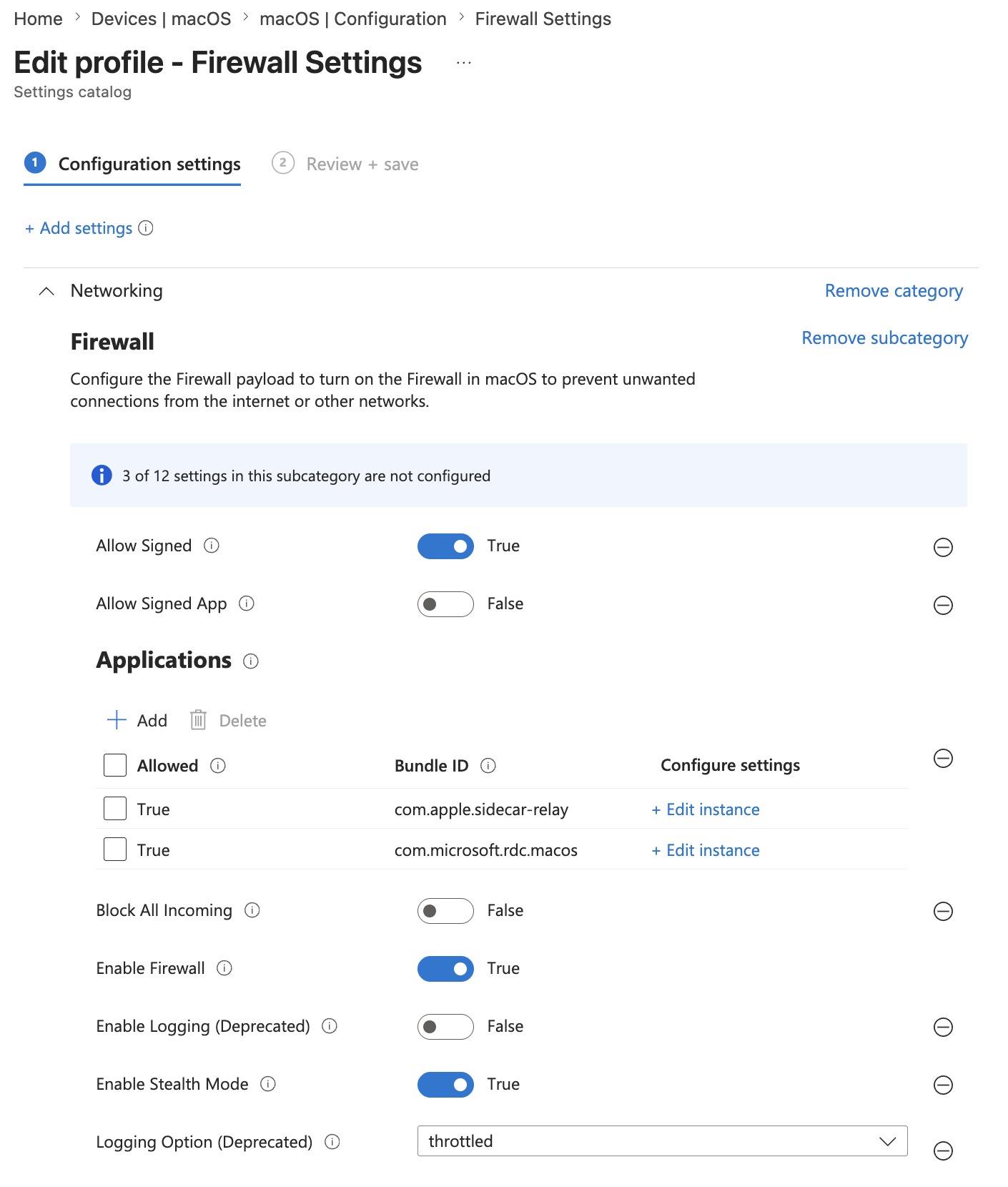
Compliance Policy Configuration: 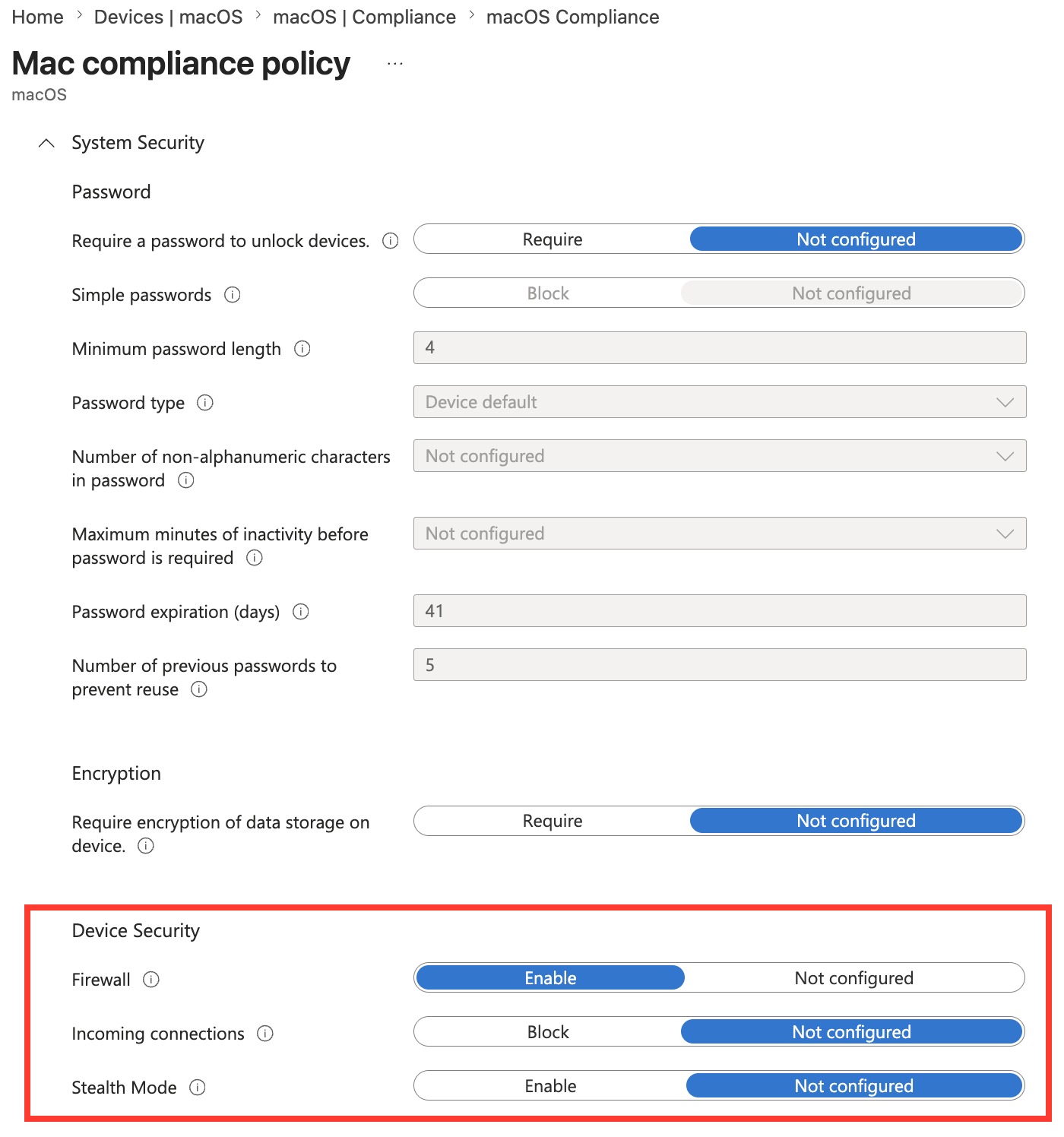
Results on device: 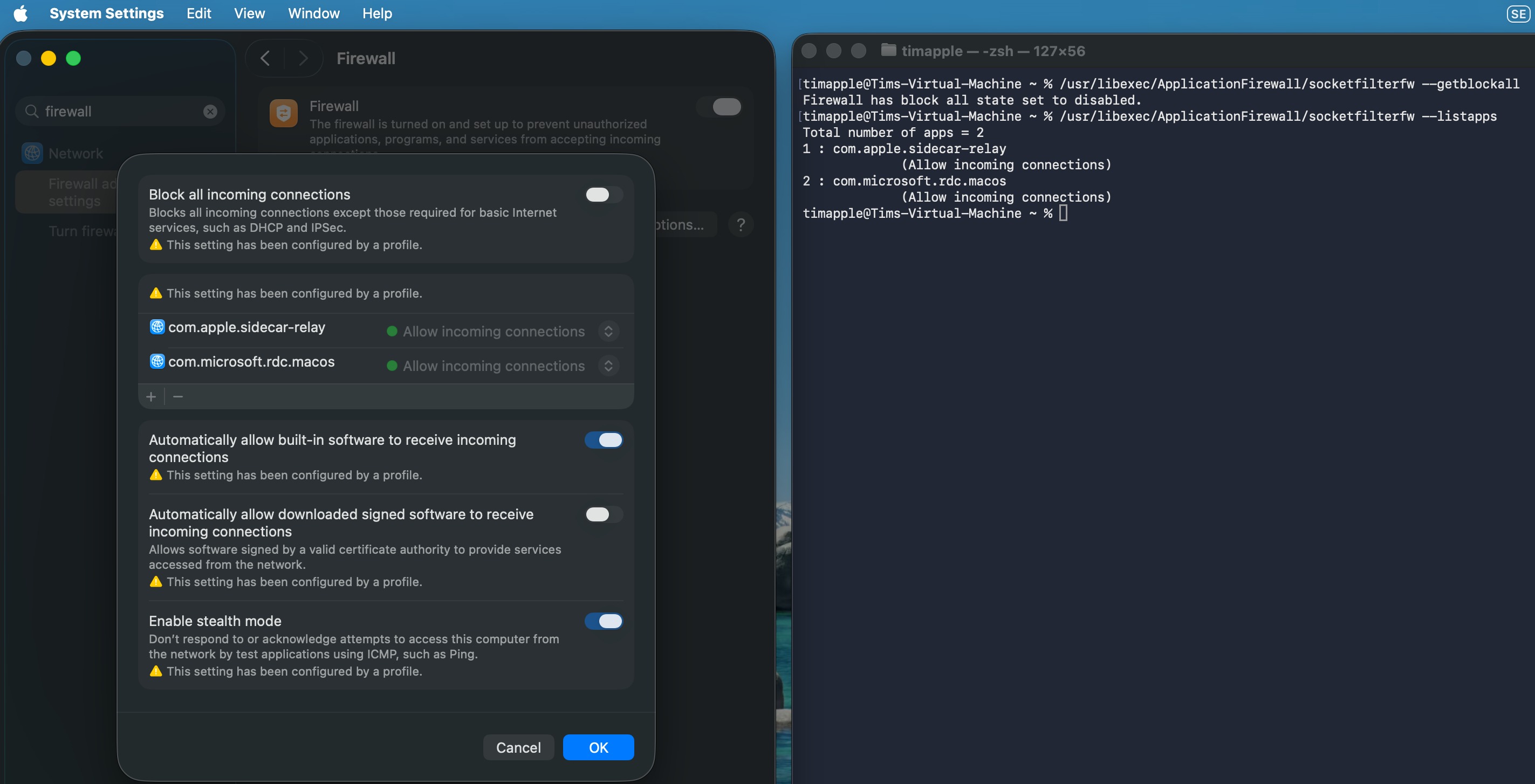
Model B: Maximum Inbound Restriction (High-Security / Air-Gapped Posture)
Goal: All unsolicited inbound connections blocked, no exceptions. Appropriate for high-security endpoints where remote management tools and sharing services are not used.
Configuration Profile:
| Setting | Value |
|---|---|
| Enable Firewall | Yes |
| Block all incoming connections | Yes |
| Enable stealth mode | Yes |
Compliance Policy → Device Security:
| Setting | Value |
|---|---|
| Firewall | Enable |
| Incoming Connections | Block |
| Stealth mode | Enable |
In this model, both policies are aligned. There is no allow-list — because you understand that no allow-list will be evaluated while block-all is active. This model is appropriate for endpoints that are not managed via screen sharing or remote MDM tools that require inbound connections, and where the device posture requirement is strict.
Verify on device:
/usr/libexec/ApplicationFirewall/socketfilterfw --getblockall
# Expected: Firewall is blocking all non-essential incoming connections.
The Incoherent Model — What to Avoid
Configuration Profile: Firewall enabled, Block all incoming = No, allow-list defined with remote support tool bundle IDs
Compliance Policy: Firewall = Enable, Incoming Connections = Block
This is the trap. It looks intentional in the portal — you appear to have a nuanced Configuration Profile with a proper allow-list, and a Compliance Policy enforcing a required baseline. In reality, the Compliance Policy's Block setting pushes a BlockAllIncoming = true payload that makes your allow-list irrelevant. Your remote support tool cannot receive inbound connections. Screen sharing is broken. Nothing in the portal indicates a conflict.
The diagnostic command tells you immediately:
/usr/libexec/ApplicationFirewall/socketfilterfw --getblockall
# Actual output: Block all ENABLED   ← not what your config profile says
Part 5: Practical Allow-List Reference
When you are running Model A and need to build an allow-list, keep it minimal. Here are the bundle IDs most commonly needed in enterprise Mac environments:
Remote support and management:
| Application | Bundle ID |
|---|---|
| Microsoft Remote Desktop | com.microsoft.rdc.macos |
| TeamViewer | com.teamviewer.TeamViewer |
| AnyDesk | com.philandro.anydesk |
| Zoom (host/remote control) | us.zoom.xos |
VPN clients:
| Application | Bundle ID |
|---|---|
| Cisco AnyConnect | com.cisco.anyconnect.gui |
| GlobalProtect | com.paloaltonetworks.GlobalProtect.client |
| Zscaler Client Connector | com.zscaler.tray |
Developer tooling (scope to dev device groups only):
| Application | Bundle ID |
|---|---|
| Docker Desktop | com.docker.docker |
Finding bundle IDs for unlisted apps:
osascript -e 'id of app "AppName"'
# Or:
mdls -name kMDItemCFBundleIdentifier /Applications/AppName.app
A few important notes on allow-list accuracy:
- Bundle ID errors are silent. If you enter an incorrect bundle ID, the rule is installed but never matches any process. Nothing in the portal flags this. Verify bundle IDs from the device itself using the commands above, not from the internet.
- Code-signed apps may not need explicit rules.
Automatically allow built-in softwareandAutomatically allow downloaded signed softwarein the Settings Catalog cover a lot of standard Apple and enterprise apps. Explicitly listing apps via bundle ID is most important for apps that are either unsigned, have non-standard signing, or where you need explicit control. - The allow-list is app-level, not port-level. If you need to control specific ports or protocols, that requires
pf(the BSD packet filter), which is outside the scope of the Intune Firewall profile.
Summary: Key Takeaways
On the macOS Application Firewall:
socketfilterfwhas two modes: rule-based and block-all. These are not degrees of the same thing — they are categorically different operating states.Block all incoming connections = truedisables per-app rule evaluation entirely. Your allow-list still exists on the device; it is simply not consulted.- Ground truth for firewall state is
socketfilterfw --getblockallon the device, not the Intune portal. - macOS 15 (Sequoia) deprecated
com.apple.alf.plist. Audit any scripts reading that file.
On Intune Compliance Policies:
- Compliance Policies for macOS firewall settings are not read-only. Microsoft explicitly documents that they can remediate settings, and that compliance takes precedence over configuration policies when there is a conflict.
- The mechanism is payload delivery: Intune pushes a
com.apple.security.firewallMDM payload as remediation, not a separate enforcement channel. - When a Compliance Policy sets
Block all incoming connections = Block, it installs a payload alongside any existing firewall Configuration Profile. macOS resolves the conflict by taking the most restrictive value across all installed payloads. - This happens silently. Both the Configuration Profile and Compliance Policy appear successfully deployed in the portal.
On policy design:
- Choose one model and be consistent between Configuration Profile and Compliance Policy.
- For allow-list model: keep
Incoming ConnectionsatNot configuredin the Compliance Policy. - For block-all model: accept that no exceptions exist and design your management workflows around that constraint.
- Community recommendation and practical guidance from practitioners is to leave firewall settings in the Compliance Policy at
Not configuredand manage firewall state exclusively through Configuration Profiles or the Settings Catalog, unless your organisation explicitly wants compliance-driven enforcement.
Further Reading
- Apple Platform Deployment — Firewall payload settings
- Apple Developer Documentation — Firewall payload keys
- Microsoft Learn — macOS compliance policy settings
- Microsoft Learn — Configure endpoint protection on macOS
- Microsoft Learn — Get started with macOS endpoints in Intune