Something I've wanted since Platform SSO first landed in Intune and with the release of macOS Tahoe 26, we finally have it. Simplified Setup brings PSSO into the Setup Assistant itself, so the whole thing happens during first boot. No waiting for a popup on the desktop to register, no hunting through System Settings to allow access. Here's how it flows:
- The Mac sits in Setup Assistant and waits until Company Portal and the required config profiles have finished installing.
- macOS then kicks off PSSO registration automatically — no user action needed.
- The user signs in with their Entra ID account, and macOS creates the local account based on that identity. Already registered with PSSO from day one.
Let's jump in.
Configuration in Intune
First we need to add one thing to the Platform SSO configuration that we deploy to the machines. If you haven't already implemented Platform SSO yet, create a new Configuration Profile with the Setting Catalog as the Profile Type. Follow the instructions on how to set up the basics from the Microsoft Learn portal how to set it up.
However - this is where we add the extra delicious sauce that will make this otherwise dry feature really shine. In the Settings Picker navigate to Authentication -> Extensible Single Sign On (SSO) and find the option for Enable Registration During Setup. Then you need to Enable this setting. Review and save the profile. Settings Catalog configuration: 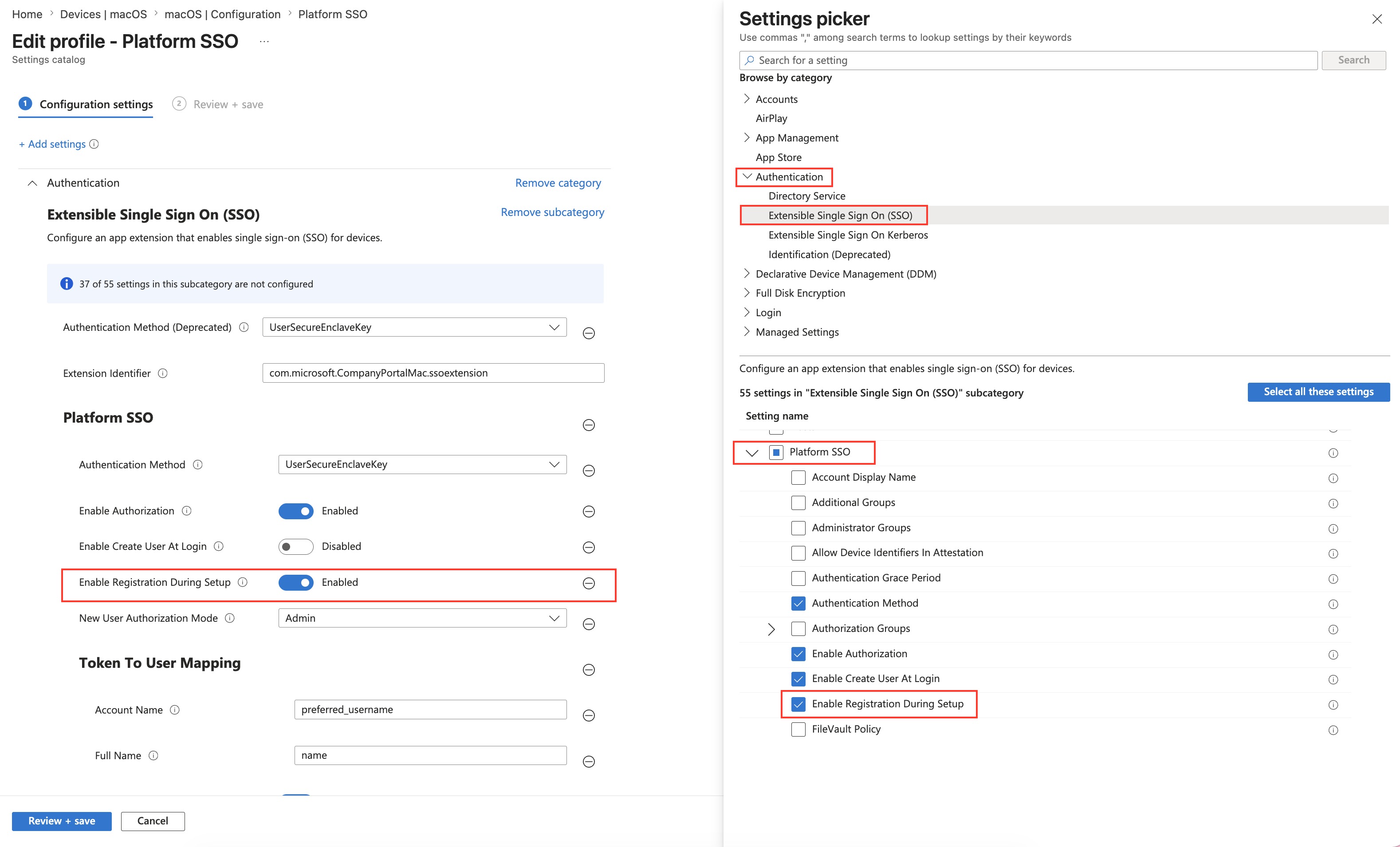
Here's the other quirk - we need the latest Beta version of the company portal! I tried a LOT with the latest version that's available from Microsoft's own download url but it did not work (As of writing this today, 9th of May, the latest version from Microsoft is 5.2603.0). You get stuck during the Setup assistant and it will tell you it's the wrong username or password. You need the version with version number 5.2604.0. Deploy it as a Line of Business app and assign it. You can download 5.2604 from HERE.
Enrollment flow
You will go through the enrollment with the Setup Assistant normally, with a few screens added. I'll dump some screenshots of the flow. Some quirks that need to be ironed out but it's working as intended. But I would keep this out of production until it's gotten a public release.
First you start off with your language and region as usual and then prompted for the ADE that your organization will manage the device. After the initial download of configuration and the creation of a local mac account, you will be greeted with this view: 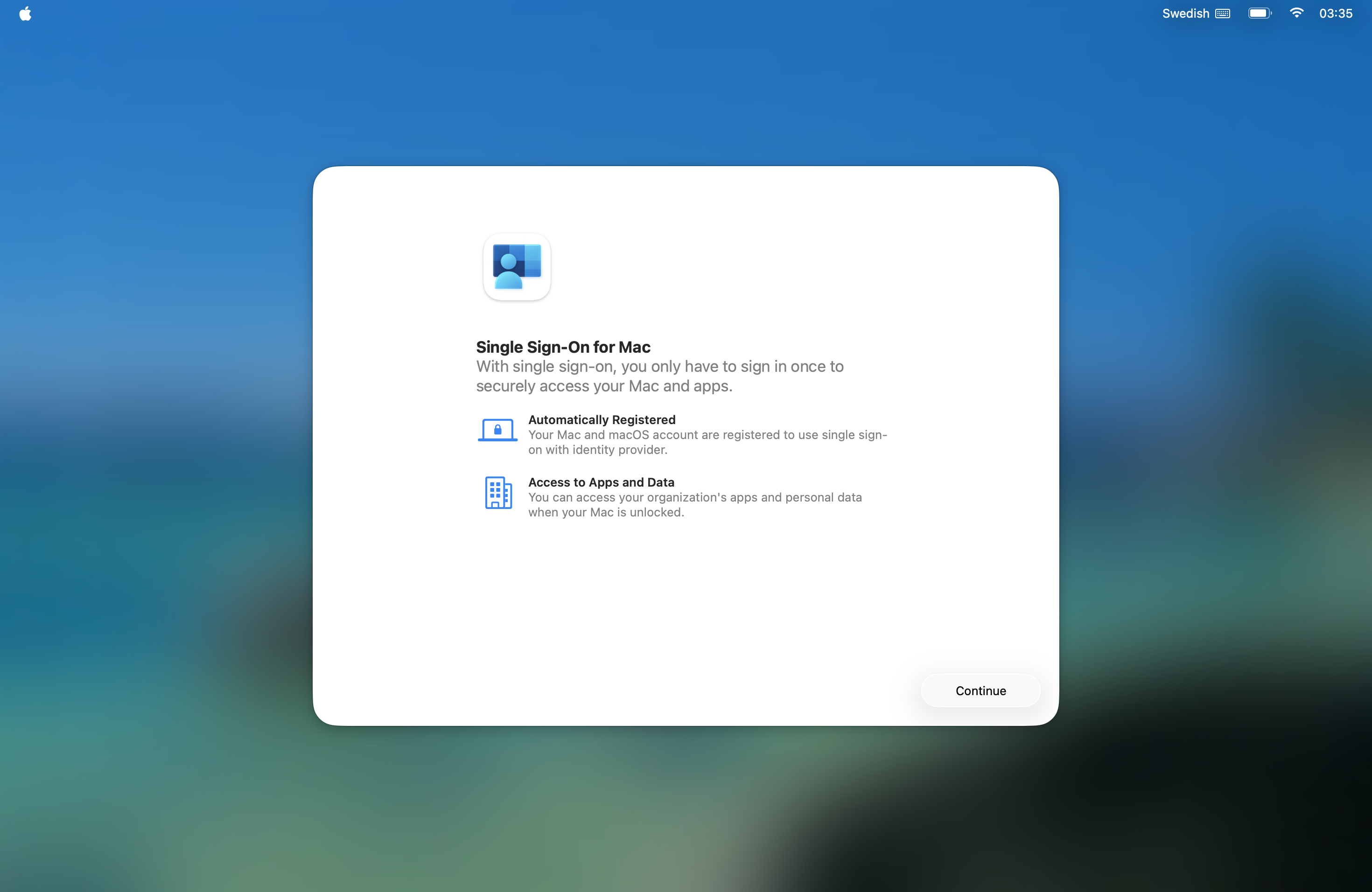
You then log in with your Entra ID and password.

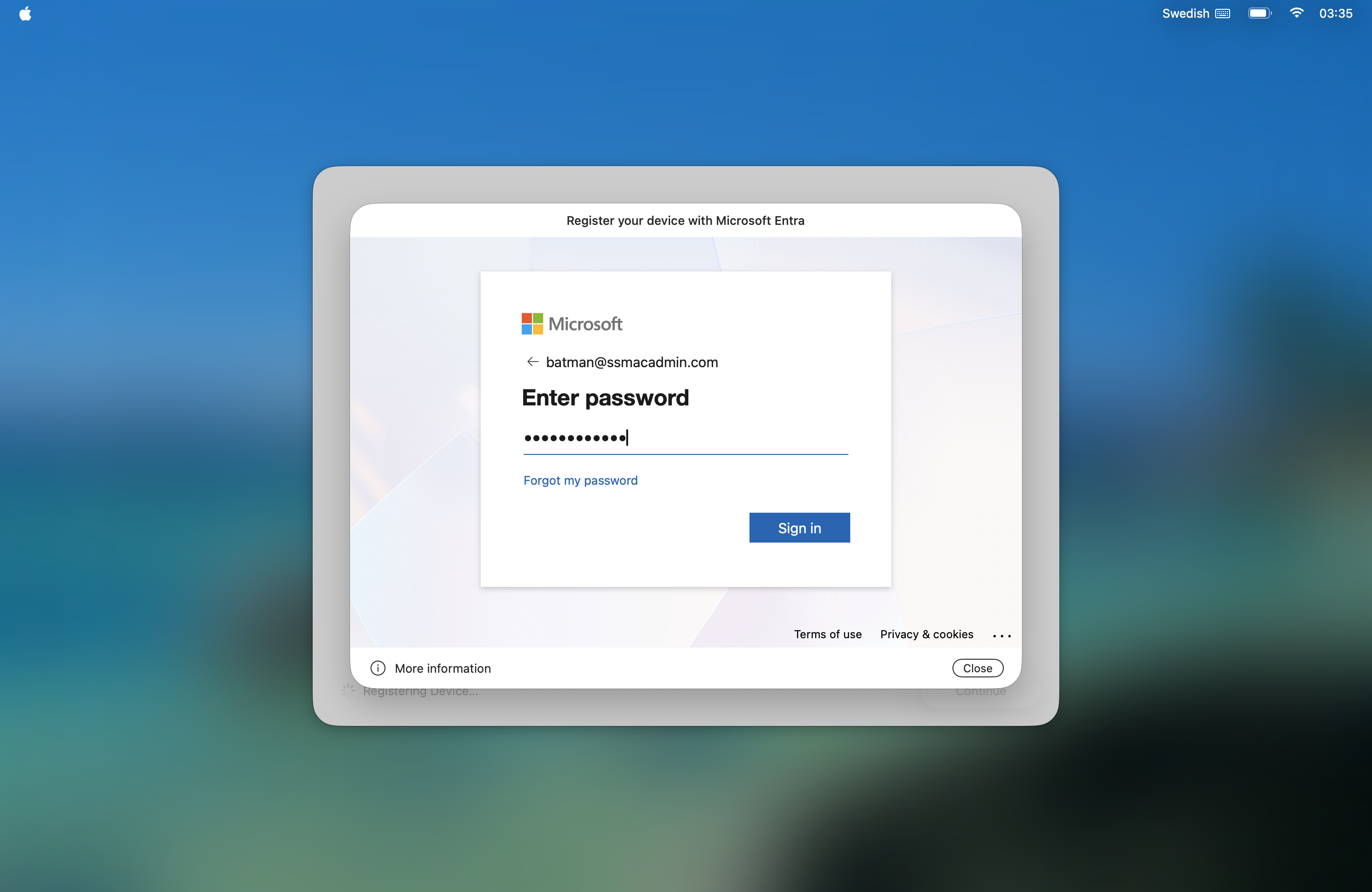
Which then will start the registration of the device. 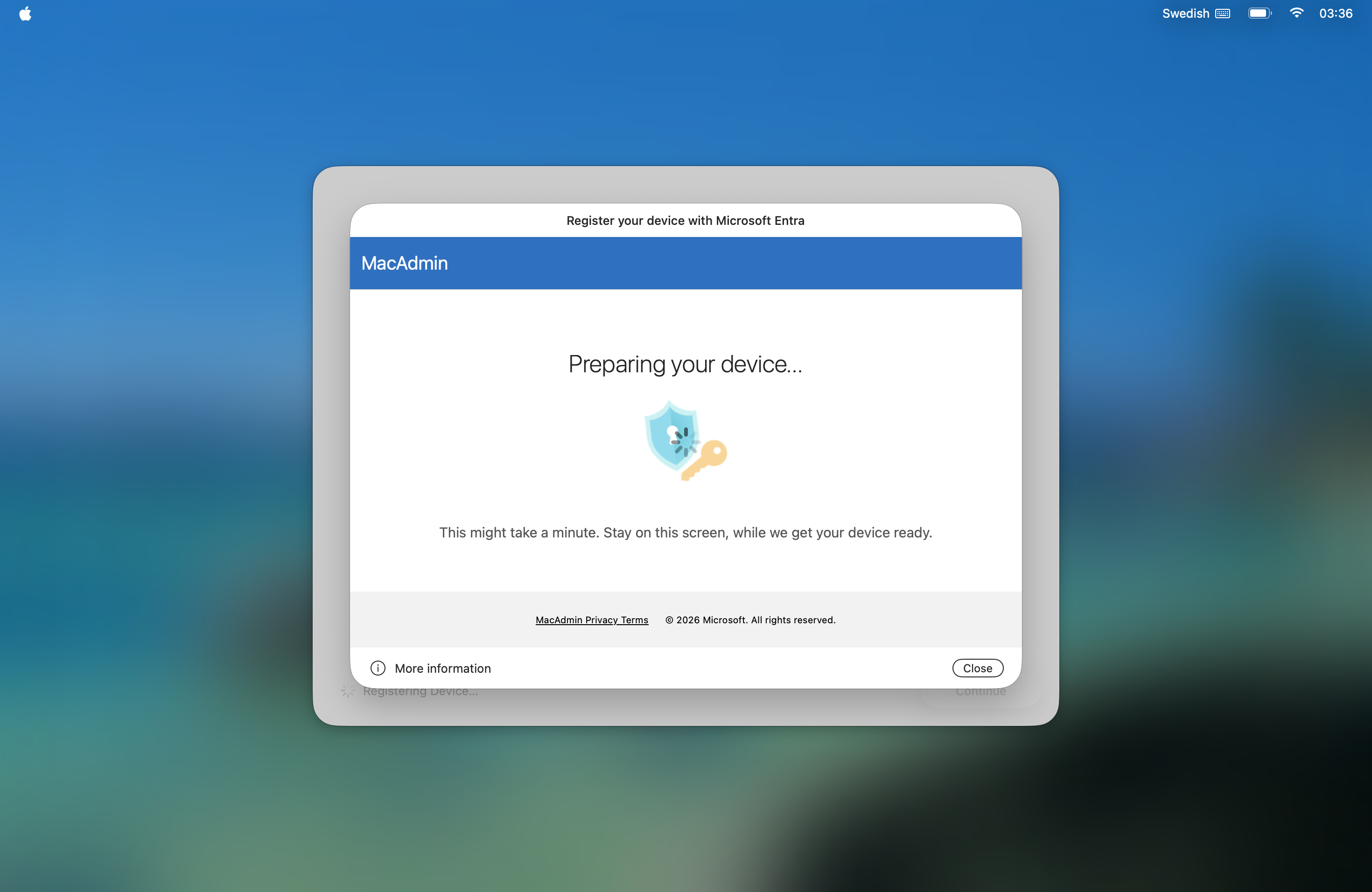
You then set up TouchID and other optional steps if it's enabled in your enrollment profile. Once that's done, you'll see the following prompt, click Continue and follow the log in prompts/MFA when asked.

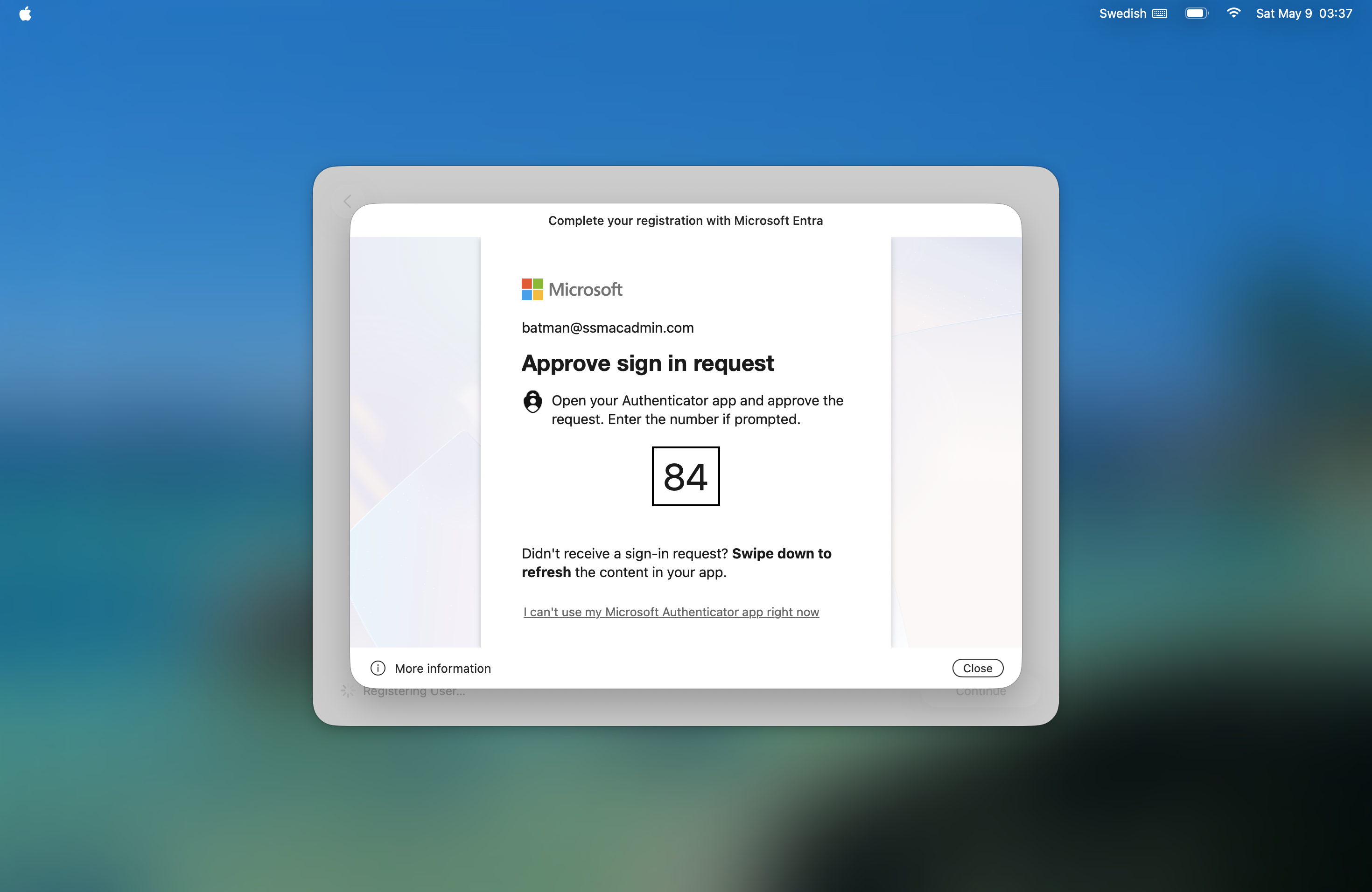
Once done, your device is now fully prepared for Platform SSO, users don't need to do anything else on the device regarding SSO and can instantly log on to Outlook, Teams, Edge, etc.
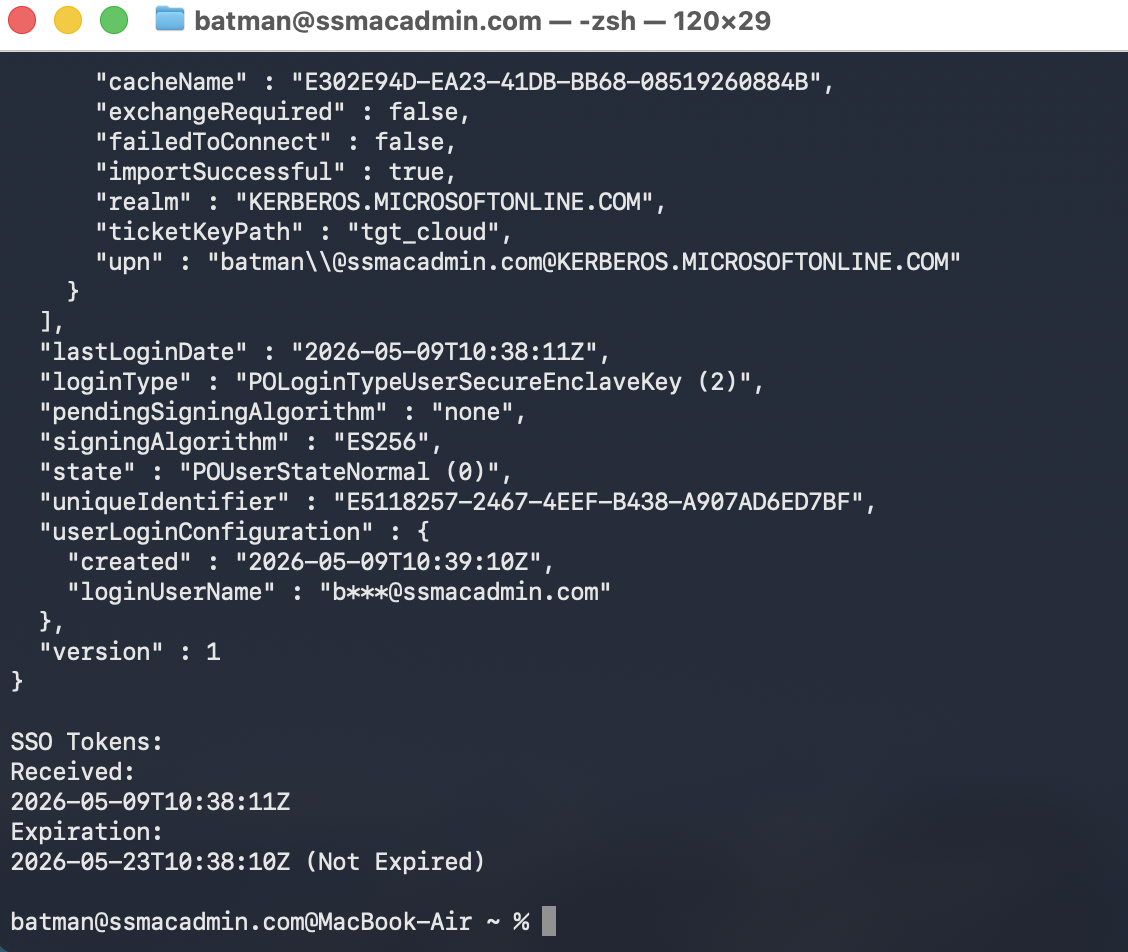
We can also verify it after enrollment that the user account is PSSO enabled from System Settings -> Users & Groups or run the app-sso platform -s command in the terminal to verify everything is correct.

Happy labbin'!