Compliance on macOS has been the poor cousin for a long time. You get FileVault, you get a minimum OS version, you get a password policy, you get the Defender signal if you've licensed it and then you fall off a cliff. Every time a customer asked "can we block Conditional Access if the Mac isn't running our required agent?" the honest answer was some variation of no, but here's a custom attribute you can look at in a report and feel sad about.
That's over. In the July Intune service release, custom compliance settings for macOS went generally available. Same model Windows and Linux have had for years, a discovery script plus a JSON rules file, and critically, the results feed Conditional Access exactly like the built-in settings do. Microsoft's framing is that macOS now reports compliance the same way Windows and Linux do, so you get one view instead of three. That's accurate, and it's a bigger deal than it sounds.
Let's get into how it actually works, and then three examples you can steal.
The model
You upload a discovery script to Intune (Endpoint security > Device compliance > Scripts > Add > macOS). Then you create a compliance policy, select that script, and paste in a JSON rules file that says what the script's output should look like for the device to be considered compliant. The script runs on the Mac, emits a set of key/value pairs, Intune compares those values against your rules, and the device flips compliant or non-compliant. The rules file also carries the remediation strings your users see in Company Portal.
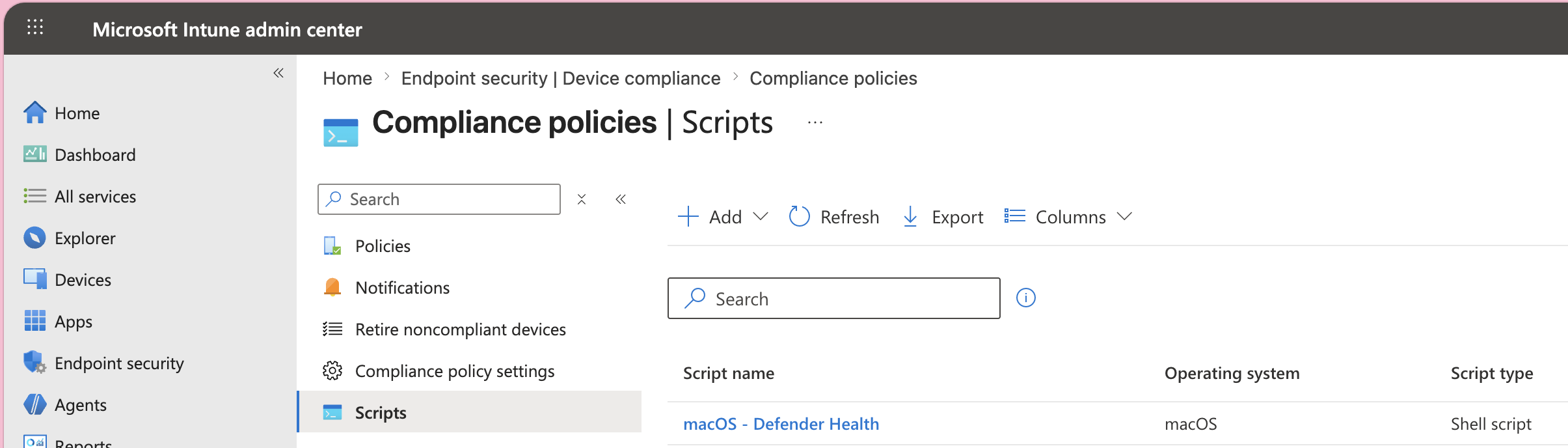
Scripts live under their own node, separate from the policies that consume them, so you upload once and reference it when you build the policy.
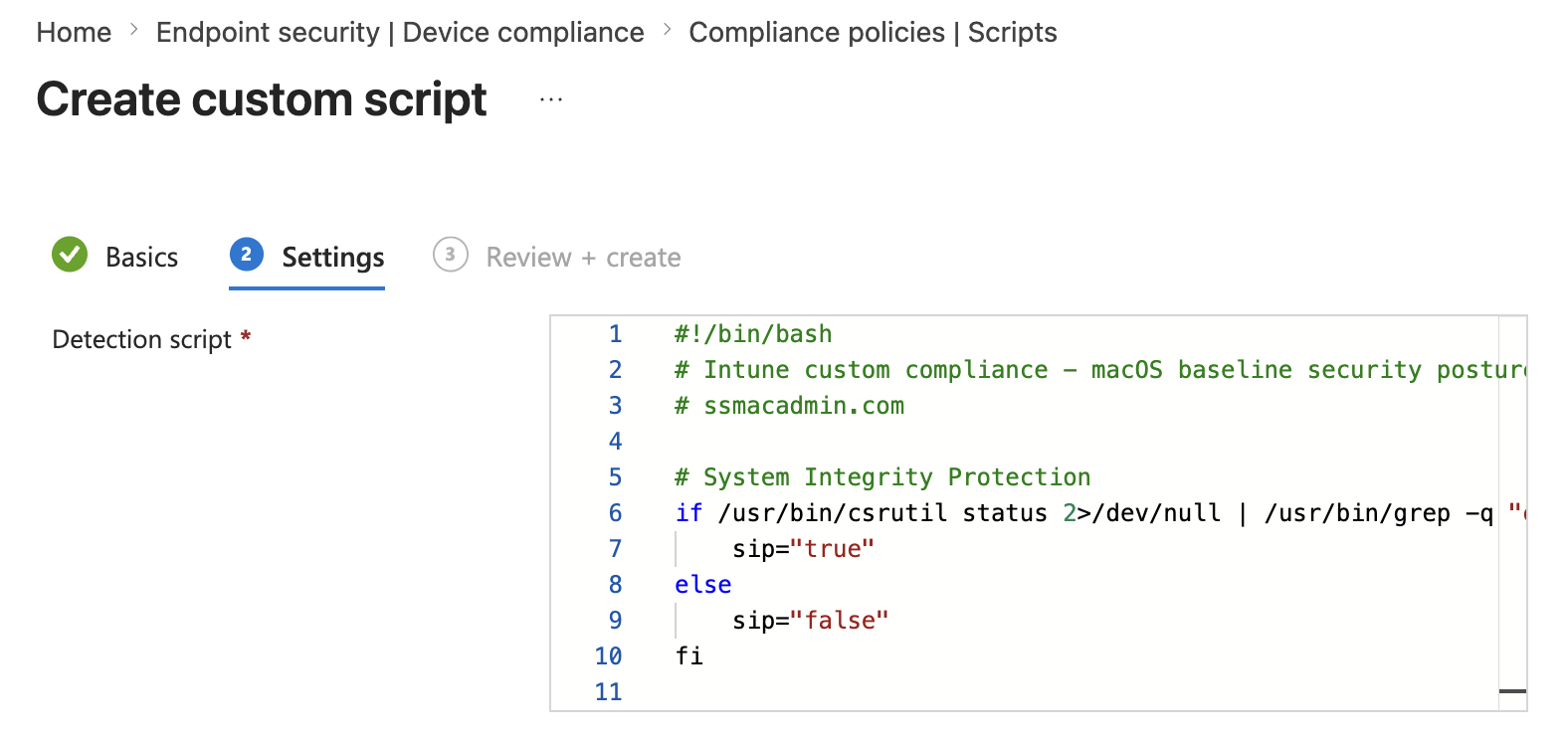
One script per policy. But a single script can return as many settings as you want, up to 100 rules and 100 KB of JSON per policy. So you don't need twelve policies for twelve checks; you need one script that returns twelve keys.
The thing the docs get wrong
Here's probably the first place you'll lose an hour. The macOS sample in the Microsoft docs is this:
attribute="CFBundleShortVersionString"
InfoPlistPath="/Library/Intune/Microsoft Intune Agent.app/Contents/Info.plist"

if [[ -f "$InfoPlistPath" ]]; then
    ver=$(plutil -p "$InfoPlistPath" | grep "$attribute" | awk -F'"' '{ print $4 }')
    echo $ver
else
    echo "not installed"
fi
That ends with a bare echo $ver, and a bare string can't be matched to a SettingName, because there's no setting name in it. Feed that to a rules file and you'll get error 65009 — invalid JSON for the discovered setting, then spend a while assuming your rules file is malformed when it isn't.
What the script has to emit is a single-line JSON object keyed on your setting names, exactly like the PowerShell samples on Windows do with ConvertTo-Json -Compress. So the corrected version of Microsoft's own example is:
#!/bin/bash

InfoPlistPath="/Library/Intune/Microsoft Intune Agent.app/Contents/Info.plist"

if [ -f "$InfoPlistPath" ]; then
    ver=$(/usr/bin/plutil -extract CFBundleShortVersionString raw "$InfoPlistPath" 2>/dev/null)
else
    ver="0.0"
fi

/bin/echo "{\"IntuneAgentVersion\":\"$ver\"}"
exit 0
Two changes beyond the output format. plutil -extract ... raw instead of plutil -p | grep | awk — one call, doesn't break when Apple reorders the plist. And the failure branch returns 0.0 rather than the string not installed, because a rule has exactly one DataType and a version comparison can't evaluate an English sentence. Give it a version number lower than anything you'd accept and a missing agent lands as cleanly non-compliant instead of throwing 65010 — invalid data type.
And here's a JSON for the corrected version:
{
  "Rules": [
    {
      "SettingName": "IntuneAgentVersion",
      "Operator": "GreaterEquals",
      "DataType": "Version",
      "Operand": "2606.000",
      "MoreInfoUrl": "https://intranet.contoso.com/mac-enrollment",
      "RemediationStrings": [
        {
          "Language": "en_US",
          "Title": "The Intune Agent is missing or out of date (found {ActualValue})",
          "Description": "Open Company Portal and sign in to reinstall the Microsoft Intune Agent. If it's already installed, leave the Mac online and connected for a few hours so it can update itself."
        }
      ]
    }
  ]
}
Other hard requirements for the macOS script:
- Valid shebang.
#!/bin/bashis what Microsoft documents. - UTF-8 encoded, no BOM.
- Exit
0on success, non-zero on failure. - Max 1 MB script, max 1 MB output, must finish in under 10 minutes.
And remember which bash you're on. /bin/bash on macOS is still 3.2 — no associative arrays, no ${var,,}, none of the nice things. If you write this on a machine where you've brew installed bash 5 and tested there, it'll work beautifully on your laptop and fail on the fleet. So write for 3.2.
Example 1 — Security posture bundle
This is the one I'd start every tenant with. Four checks, four different data types, one script.
#!/bin/bash
# Intune custom compliance — macOS baseline security posture
# ssmacadmin.com

# System Integrity Protection
if /usr/bin/csrutil status 2>/dev/null | /usr/bin/grep -q "enabled"; then
    sip="true"
else
    sip="false"
fi

# Gatekeeper
if /usr/sbin/spctl --status 2>/dev/null | /usr/bin/grep -q "assessments enabled"; then
    gatekeeper="true"
else
    gatekeeper="false"
fi

# FileVault
if /usr/bin/fdesetup status 2>/dev/null | /usr/bin/grep -q "FileVault is On"; then
    filevault="true"
else
    filevault="false"
fi

# XProtect definition version
xprotect=$(/usr/bin/defaults read \
    "/Library/Apple/System/Library/CoreServices/XProtect.bundle/Contents/Info.plist" \
    CFBundleShortVersionString 2>/dev/null)
case "$xprotect" in
    ''|*[!0-9]*) xprotect=0 ;;
esac

/bin/echo "{\"SipEnabled\":$sip,\"GatekeeperEnabled\":$gatekeeper,\"FileVaultEnabled\":$filevault,\"XProtectVersion\":$xprotect}"
exit 0
The case statement is doing sanity work: if defaults read fails or returns something non-numeric, we fall back to 0 rather than emitting broken JSON. Get in the habit of that. A script that returns malformed JSON doesn't fail open, it fails to a 65009 and the device sits there un-evaluated.
And the rules file:
{
  "Rules": [
    {
      "SettingName": "SipEnabled",
      "Operator": "IsEquals",
      "DataType": "Boolean",
      "Operand": true,
      "MoreInfoUrl": "https://support.apple.com/en-gb/guide/security/sec6c3caa2be/web",
      "RemediationStrings": [
        {
          "Language": "en_US",
          "Title": "System Integrity Protection is disabled",
          "Description": "SIP has been turned off on this Mac. Contact the service desk — re-enabling SIP requires booting to Recovery."
        }
      ]
    },
    {
      "SettingName": "GatekeeperEnabled",
      "Operator": "IsEquals",
      "DataType": "Boolean",
      "Operand": true,
      "MoreInfoUrl": "https://support.apple.com/en-gb/guide/security/sec5599b66df/web",
      "RemediationStrings": [
        {
          "Language": "en_US",
          "Title": "Gatekeeper is disabled",
          "Description": "Gatekeeper has been turned off on this Mac. Open System Settings > Privacy & Security and set 'Allow applications from' back to App Store & Known Developers. If the setting is greyed out or missing, contact the service desk."
        }
      ]
    },
    {
      "SettingName": "FileVaultEnabled",
      "Operator": "IsEquals",
      "DataType": "Boolean",
      "Operand": true,
      "MoreInfoUrl": "https://support.apple.com/en-gb/guide/mac-help/mh11785/mac",
      "RemediationStrings": [
        {
          "Language": "en_US",
          "Title": "FileVault is not enabled",
          "Description": "Open System Settings > Privacy & Security > FileVault and turn it on."
        }
      ]
    },
    {
      "SettingName": "XProtectVersion",
      "Operator": "GreaterEquals",
      "DataType": "Int64",
      "Operand": 5300,
      "MoreInfoUrl": "https://ssmacadmin.com/",
      "RemediationStrings": [
        {
          "Language": "en_US",
          "Title": "XProtect definitions are out of date (found {ActualValue})",
          "Description": "This Mac hasn't received Apple's malware definitions recently. Check that it can reach Apple's update servers and that Background Tasks are permitted."
        }
      ]
    }
  ]
}
One thing worth pointing at. {ActualValue} gets substituted with whatever the script returned, use it constantly, because "your version is wrong" is a useless error message and "your version is 5194" is an actionable one.
Upload that against the script and Intune parses it into a readable summary above the editor:
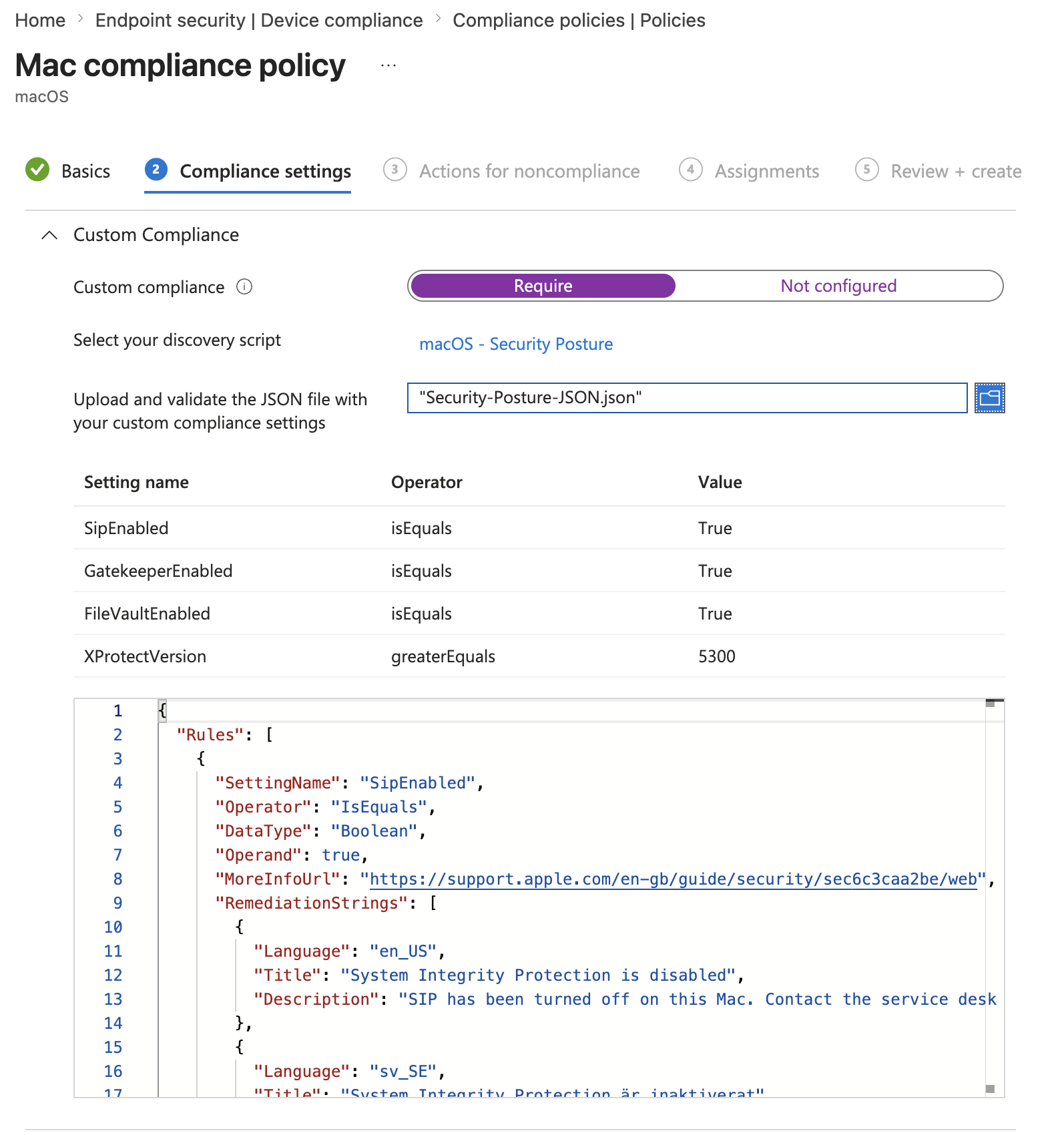
That table is your first sanity check. If a setting you expected isn't listed, the rule didn't parse, fix it here rather than waiting for devices to report back.
SettingName is case-sensitive, by the way. sipEnabled in the script and SipEnabled in the JSON gets you a 65008 — setting missing in the script result, which is a fun one to debug at four in the afternoon.
Example 2 — Defender for Endpoint health
Built-in compliance gives you the Defender risk score. It doesn't tell you whether the agent is actually healthy, whether real-time protection got switched off, or whether the thing is six versions behind. This does.
#!/bin/bash
# Intune custom compliance — Defender for Endpoint on macOS

MDATP="/usr/local/bin/mdatp"

if [ ! -x "$MDATP" ]; then
    /bin/echo "{\"DefenderInstalled\":false,\"DefenderHealthy\":false,\"DefenderRtpEnabled\":false,\"DefenderVersion\":\"0.0.0.0\"}"
    exit 0
fi

healthy=$("$MDATP" health --field healthy 2>/dev/null | /usr/bin/tr -d '"[:space:]')
rtp=$("$MDATP" health --field real_time_protection_enabled 2>/dev/null | /usr/bin/tr -d '"[:space:]')
ver=$("$MDATP" health --field app_version 2>/dev/null | /usr/bin/tr -d '"[:space:]')

# Normalise anything unexpected to a safe, non-compliant value
[ "$healthy" = "true" ] || healthy="false"
[ "$rtp" = "true" ] || rtp="false"
[ -n "$ver" ] || ver="0.0.0.0"

/bin/echo "{\"DefenderInstalled\":true,\"DefenderHealthy\":$healthy,\"DefenderRtpEnabled\":$rtp,\"DefenderVersion\":\"$ver\"}"
exit 0
The early exit when mdatp isn't present is deliberate. If Defender isn't installed at all, you still want a well-formed JSON object saying "no" and not an empty output, and not a non-zero exit. A missing agent should read as non-compliant, not as a script error, because non-compliant blocks access and a script error just leaves the setting unevaluated.
DefenderInstalled looks redundant next to the other three — if it's not installed, they're all false anyway. It isn't, and the Company Portal screenshots further down show exactly why.
And the rules file. Every setting the script returns gets a rule — if you skip one, it's collected and then quietly ignored. Note the order: DefenderInstalled first, because that's the order the action items appear in for the user.
{
  "Rules": [
    {
      "SettingName": "DefenderInstalled",
      "Operator": "IsEquals",
      "DataType": "Boolean",
      "Operand": true,
      "MoreInfoUrl": "https://learn.microsoft.com/en-us/defender-endpoint/mac-install-with-intune",
      "RemediationStrings": [
        {
          "Language": "en_US",
          "Title": "Microsoft Defender isn't installed",
          "Description": "This Mac is missing Microsoft Defender for Endpoint. Open Company Portal, find Microsoft Defender in the Apps list and install it, then reopen this dialog and select Retry. Any other Defender items listed here will clear once it's installed."
        }
      ]
    },
    {
      "SettingName": "DefenderHealthy",
      "Operator": "IsEquals",
      "DataType": "Boolean",
      "Operand": true,
      "MoreInfoUrl": "https://learn.microsoft.com/en-us/defender-endpoint/mac-support-install",
      "RemediationStrings": [
        {
          "Language": "en_US",
          "Title": "Microsoft Defender isn't protecting this Mac",
          "Description": "Either Microsoft Defender isn't installed, or it isn't running correctly. Install it from Company Portal if it's missing. If it's already there, open it and complete any onboarding prompts, then contact the service desk if this warning stays."
        }
      ]
    },
    {
      "SettingName": "DefenderRtpEnabled",
      "Operator": "IsEquals",
      "DataType": "Boolean",
      "Operand": true,
      "MoreInfoUrl": "https://learn.microsoft.com/en-us/defender-endpoint/mac-preferences",
      "RemediationStrings": [
        {
          "Language": "en_US",
          "Title": "Real-time protection isn't active",
          "Description": "Real-time protection isn't running on this Mac. If Microsoft Defender is installed, open it and turn real-time protection back on. If it isn't installed, install it from Company Portal first and this will resolve with it."
        }
      ]
    },
    {
      "SettingName": "DefenderVersion",
      "Operator": "GreaterEquals",
      "DataType": "Version",
      "Operand": "101.25062.0000",
      "MoreInfoUrl": "https://learn.microsoft.com/en-us/defender-endpoint/mac-whatsnew",
      "RemediationStrings": [
        {
          "Language": "en_US",
          "Title": "Microsoft Defender is missing or out of date (found {ActualValue})",
          "Description": "A version of 0.0.0.0 means Microsoft Defender isn't installed — install it from Company Portal. Any other version means it needs updating: open Microsoft Defender and check for updates."
        }
      ]
    }
  ]
}
DefenderVersion is where the Version data type earns its keep. It does proper version comparison rather than string comparison, which is the difference between 101.9 sorting above 101.25062 and it not doing that. Use Version for anything version-shaped and Int64 for anything that's genuinely just a number.
Example 3 — Platform SSO registration state
This is really neat to have if you start to roll out Platform SSO to your devices and want to catch if something fails, because this way we can also notify the user that the registration might not have been set up correctly and needs to be revisited.
#!/bin/bash
# Intune custom compliance — Platform SSO registration state

APPSSO="/usr/bin/app-sso"

if [ ! -x "$APPSSO" ]; then
    /bin/echo "{\"PssoRegistered\":false}"
    exit 0
fi

state=$("$APPSSO" platform -s 2>/dev/null)

if /bin/echo "$state" | /usr/bin/grep -q '"registrationCompleted" *: *true'; then
    registered="true"
else
    registered="false"
fi

/bin/echo "{\"PssoRegistered\":$registered}"
exit 0
The rules file is the simplest of the lot, one Boolean:
{
  "Rules": [
    {
      "SettingName": "PssoRegistered",
      "Operator": "IsEquals",
      "DataType": "Boolean",
      "Operand": true,
      "MoreInfoUrl": "https://intranet.contoso.com/platform-sso",
      "RemediationStrings": [
        {
          "Language": "en_US",
          "Title": "Platform SSO registration isn't complete",
          "Description": "Enable Platform SSO, set it up from the Company Portal or contact the service desk for assistance."
        }
      ]
    }
  ]
}
Note that there's no {ActualValue} here, with a Boolean it'd just render "false", which tells the user nothing they didn't already know from being blocked. Save the token for versions and numbers.
All of the scripts and rules can be downloaded from my github: SSMacAdmin's GitHub
What the user actually sees
This is the half that gets skipped in most write-ups, and it's the half that determines whether your rollout generates tickets or resolves itself.
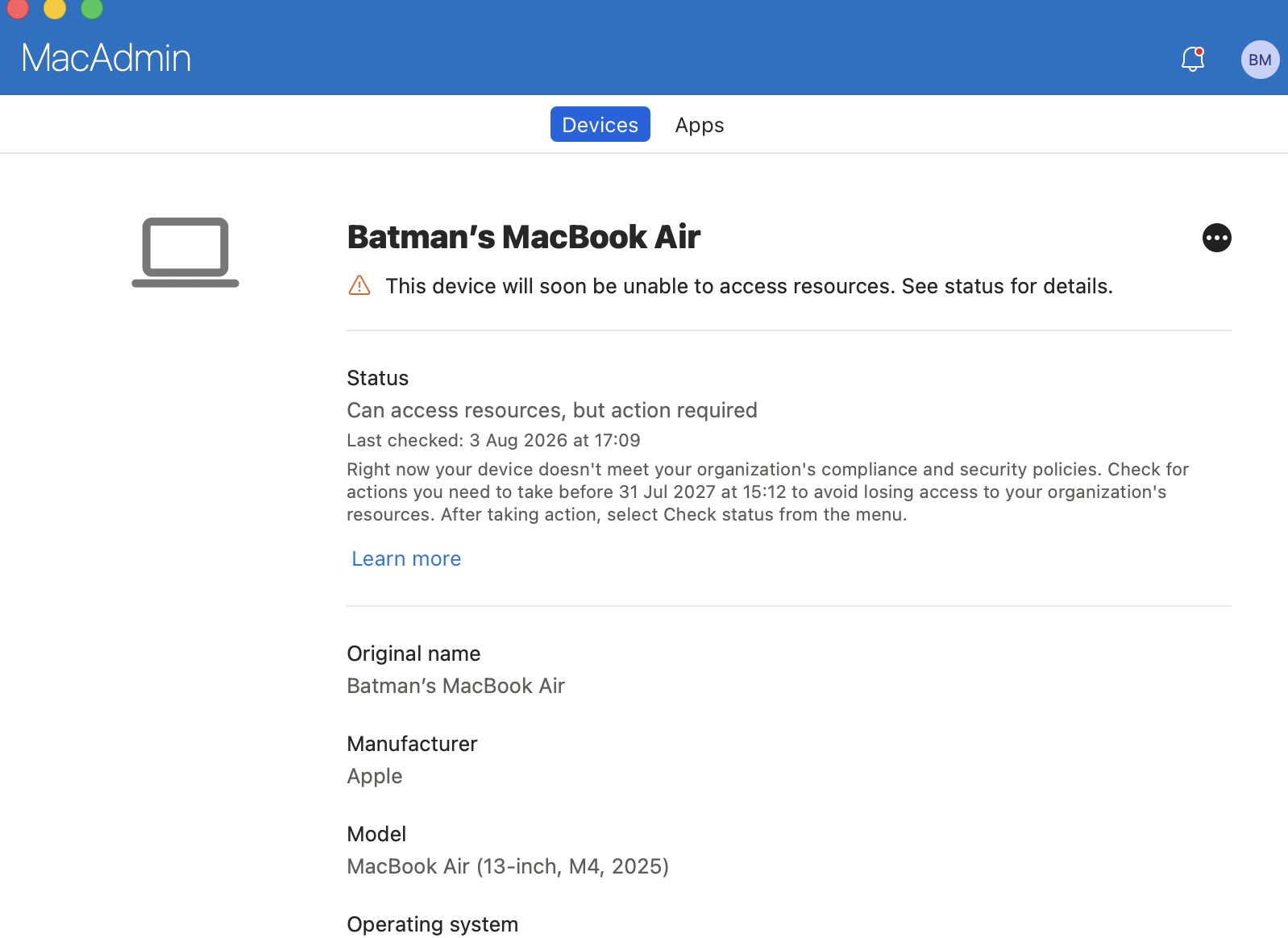
When a Mac fails a custom rule, Company Portal doesn't say "Compliance failed." It tells the user Right now your device doesn't meet your organization's compliance and security policies. Check for actions you need to take before 31 Jul 2027 at 15:12 to avoid losing access to your organization's resources. After taking action, select Check status from the menu. and they have to click on Learn more to see what's causing the hiccup:
Click through and you get the action items, and as you can see from our JSON rules, it says whatever you wrote in RemediationStrings:
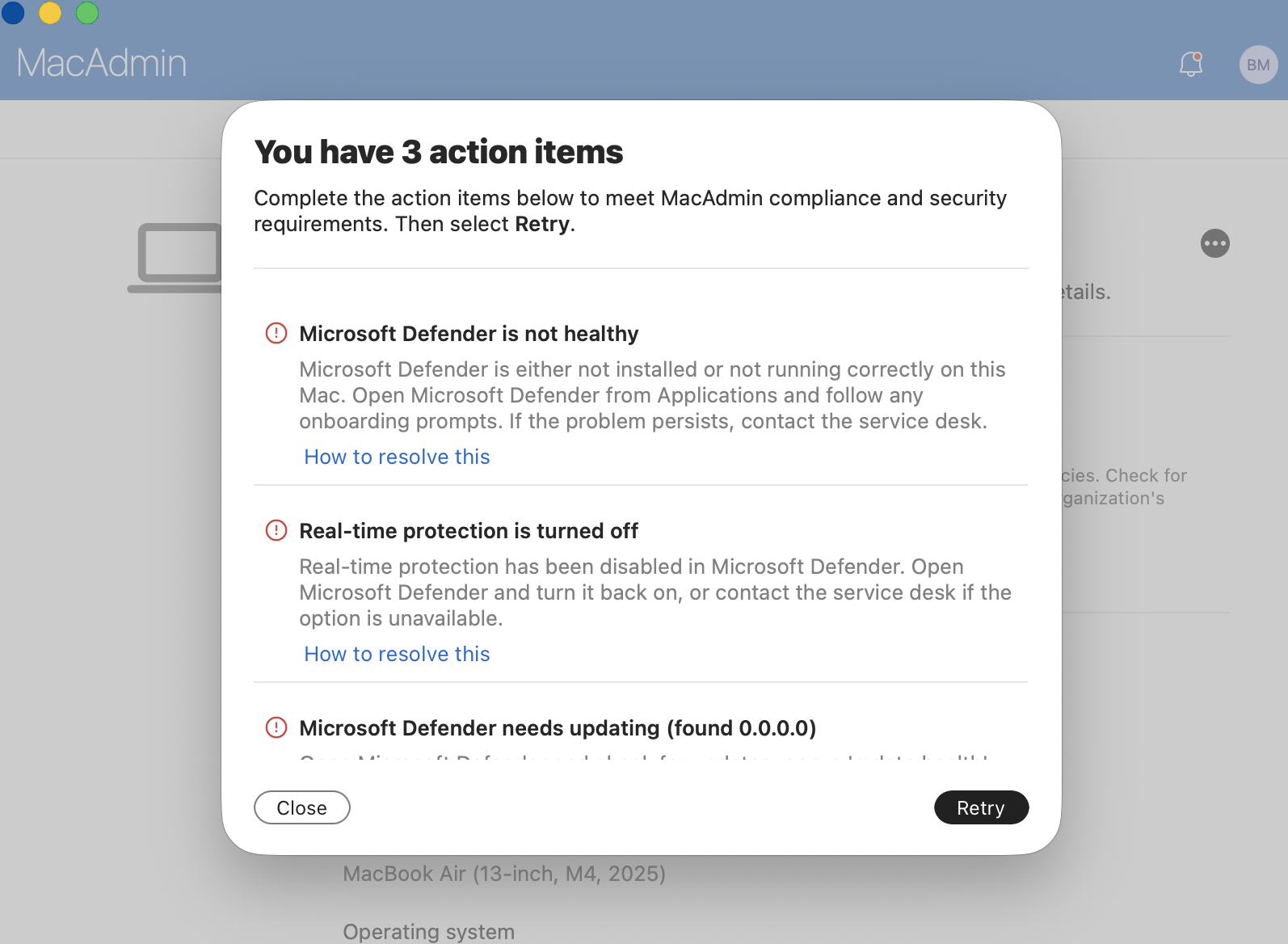
Three rules, three separate items, each with the title and description straight out of the JSON, and each with a How to resolve this link pointing at the MoreInfoUrl you supplied. This is why it's worth writing those strings properly instead of pasting "Contact IT" into all of them, the dialog is doing your first-line support for you, but only with the words you gave it.
Which is exactly where I got it wrong the first time round, so let's look at that.
Look closely at the third item: Microsoft Defender needs updating (found 0.0.0.0). Looping back to the Defender Health script earlier, that's the {ActualValue} token doing its job, and it's the sentinel-value pattern from the script paying off — 0.0.0.0 is what the early-exit branch emits, so the version rule fails cleanly against a value guaranteed to be lower than any real build. No 65009, no unevaluated setting, just a correctly non-compliant device.
Except, on that Mac, Defender isn't installed at all. And now read those three messages again as the user sees them.
Open Microsoft Defender and check for updates. Turn real-time protection back on. Open Microsoft Defender from Applications and follow the onboarding prompts. Every one of those instructions refers to an application that isn't on the machine. The script was right, the JSON was right, the compliance verdict was right, and the user still can't act on any of it.
This is the failure mode nobody warns you about, because it isn't an error — nothing in the reports will flag it. Your rules fire independently, but your remediation strings were written as if only one thing could be wrong at a time. Three rules all failing for the same root cause produce three messages that each assume the other two passed.
Two ways out, and you want both.
Write strings that cover the whole range of the rule. If a Boolean can be false because the thing is off or because the thing is absent, say so:
"Title": "Microsoft Defender isn't protecting this Mac",
"Description": "Either Microsoft Defender isn't installed, or it isn't running correctly. Open Company Portal and install Microsoft Defender for Endpoint. If it's already installed, open it and complete any onboarding prompts, then contact the service desk if the warning stays."
And make presence its own setting, ordered first. Rules render in the order they appear in the Rules array, so put the one that explains the others at the top:
if [ ! -x "$MDATP" ]; then
    /bin/echo "{\"DefenderInstalled\":false,\"DefenderHealthy\":false,\"DefenderRtpEnabled\":false,\"DefenderVersion\":\"0.0.0.0\"}"
    exit 0
fi
With DefenderInstalled as the first rule, the user's first action item is install Defender — the one instruction that's actually executable, and the three below it read as supporting detail rather than three contradictory demands:
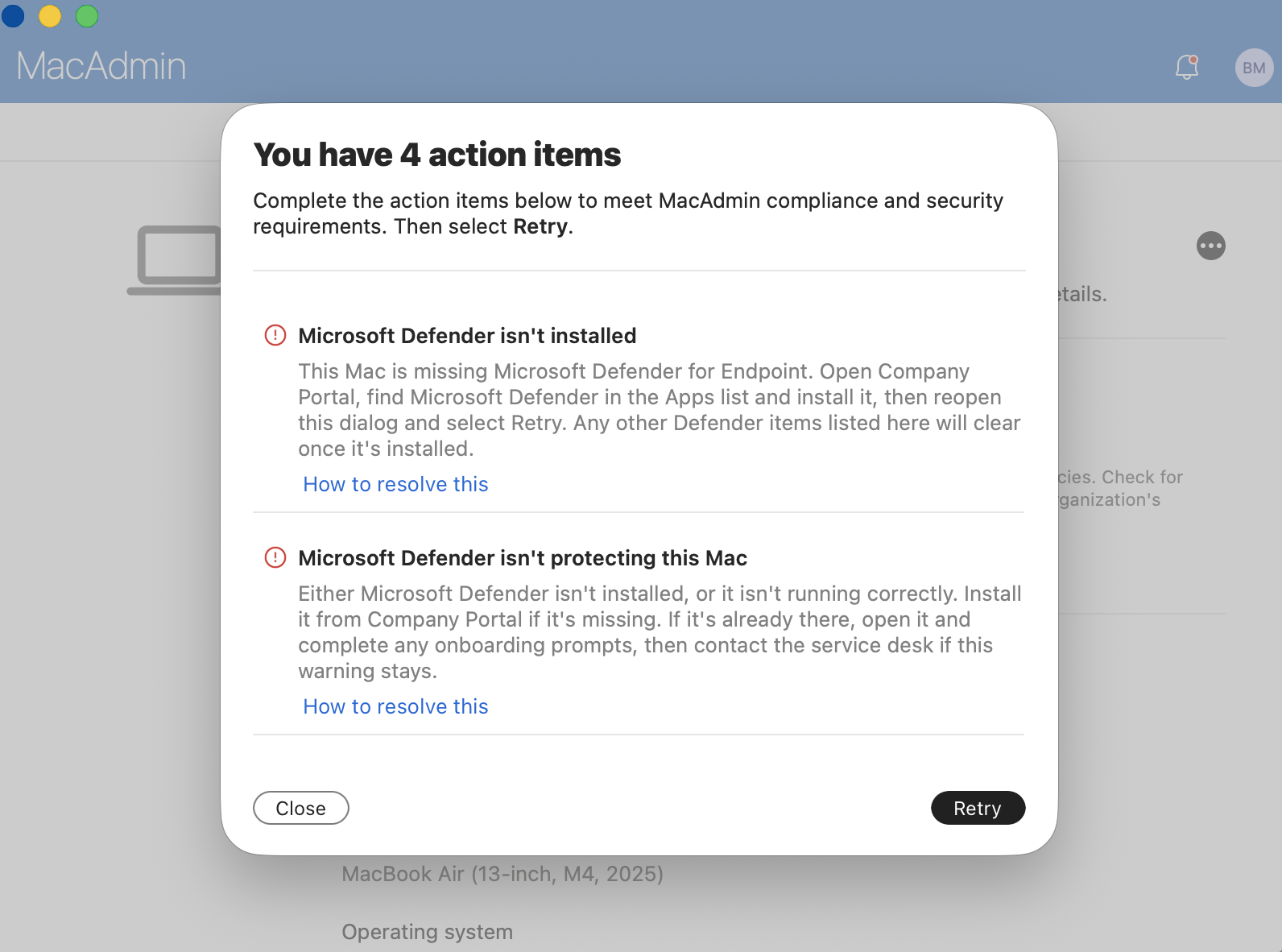
Same Mac, same missing agent, same four rules failing. The only thing that changed is the order and the wording, and it's the difference between a ticket and a self-service fix.
That screenshot also settles something the documentation doesn't cover: rules render in Company Portal in the order they appear in your Rules array. Not alphabetically, not by data type, not by evaluation order. Whatever you put first, the user reads first. That's a design lever, so use it, lead with the rule that explains the others, and put the narrow, technical checks underneath.
The broader lesson generalises past Defender: write your remediation strings for the worst case, not the expected one. The expected case is the one you had in mind when you wrote the rule. The worst case is a bare machine where every check fails simultaneously, and that's the machine whose user is going to open a ticket.
Gotchas worth writing on a sticky note
The cadence is slow. Microsoft documents an eight-hour evaluation interval, and it can take up to eight hours for a fixed device to show as compliant again. Users can force it: the Retry button in the action items dialog above, or Company Portal -> Devices -> select the device -> Check Status. Put that in your service desk runbook, because you will get tickets that are just "I fixed it and it still says I'm blocked."
Every rules file needs the Rules array. A bare rule object with no {"Rules": [ ... ]} wrapper fails upload validation with "At least one rule must be specified", which is technically accurate and completely unhelpful, because your rule is right there on screen. If you're assembling a file from documentation snippets, that wrapper is the first thing to check. Good news: this one fails at upload time rather than on the device, so you find out immediately instead of eight hours later.
Rule order is user-facing. Company Portal lists action items in the order the rules appear in your Rules array. Nothing enforces this and nothing documents it, but it's consistent — so treat the array as a script you're writing for the user, not just a set of checks.
Know your error codes. They show up in the compliance reports and they're the fastest path to a diagnosis:
| Code | Meaning | Usual cause |
|---|---|---|
| 65007 | Script returned failure | Non-zero exit, or the script blew up |
| 65008 | Setting missing in script result | SettingName typo or case mismatch |
| 65009 | Invalid JSON for the discovered setting | Malformed output — unquoted string, trailing comma, multi-line output |
| 65010 | Invalid data type | Emitted "true" where the rule expects Boolean, or a string where it expects Int64 |
65010 catches people constantly. In JSON, true and "true" are different things. Booleans go out unquoted, integers go out unquoted, strings go out quoted. Look back at the examples above — that's why $sip gets interpolated bare and $ver gets wrapped in escaped quotes.
You can't delete an assigned script. Unassign it from the policy first. Minor, but it turns a thirty-second cleanup into a four-click puzzle.
Test somewhere isolated. Intune does not validate your script for syntax or logic. It'll happily accept something that returns garbage on every Mac in the estate and quietly hand Conditional Access a fleet-wide non-compliant verdict. Run it locally, run it on a test device, then scope it to a pilot group, then go wide.
Monitoring lives in Reports. Reports -> Device compliance -> Reports tab -> Noncompliant devices and settings, pick macOS as the platform, Generate. Per-setting detail, which is what you want when you're trying to work out whether it's one rule failing across the fleet or one Mac failing everything.
Where this fits
Custom compliance is a detection mechanism, not a remediation one. It tells you a Mac is wrong and it can block that Mac's access. It cannot fix anything. So the pattern that works is: shell script (or DDM, or a config profile) to enforce the state, custom compliance to verify it, Conditional Access to act on the verdict. Three separate mechanisms doing three separate jobs.
It's also not a replacement for the built-in settings. osMinimumVersion is still the right tool for OS version enforcement, and if you're not already updating that automatically from the SOFA feed, my Apple Compliance Version Updater does exactly that on a schedule. Use the built-ins for what they cover, and use custom compliance for the long tail they don't: agent versions, running processes, security posture, third-party tooling, and everything else that used to live in a custom attribute nobody looked at.
That long tail is most of what customers actually ask for. Nice to finally have somewhere to put it.
Happy labbin' and take care!